
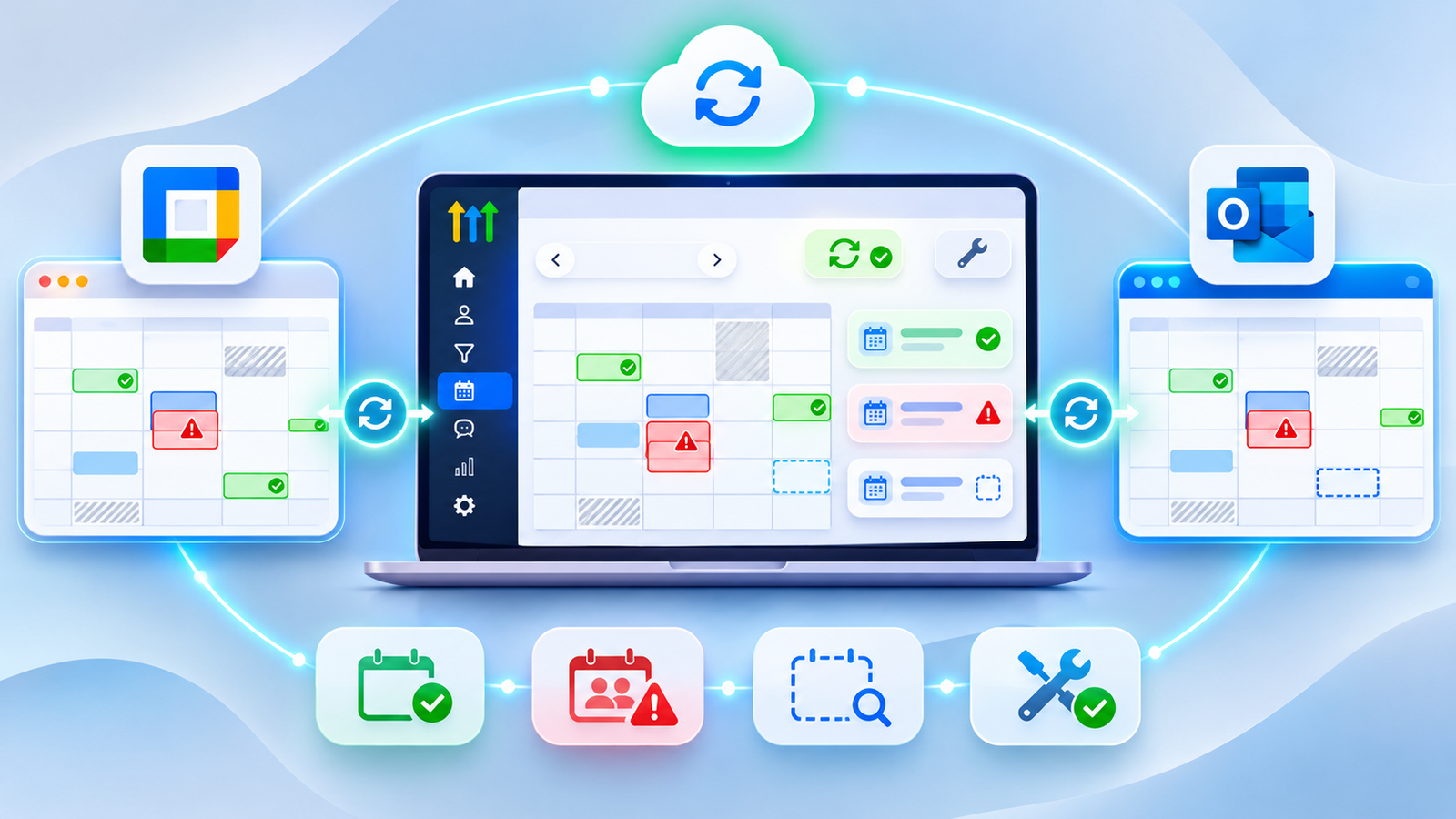
A customer books a consultation through your GoHighLevel calendar. The confirmation appears in your CRM, but the appointment never reaches your team's Google Calendar. Meanwhile, another customer books the same time because HighLevel doesn't recognise an existing Outlook meeting.
For a UK business relying on appointments, these problems can mean missed consultations, frustrated customers and unnecessary administrative work.
If your GoHighLevel calendar is not syncing, the problem may involve account permissions, calendar connections, incorrect availability settings or the way external events are handled.
This guide explains how to diagnose Google and Outlook calendar integration issues, recover missing appointment visibility, prevent unintended double bookings and test whether your scheduling system is working correctly.
Why Is GoHighLevel Calendar Not Syncing with Google or Outlook?
GoHighLevel calendar synchronisation can fail when Google or Microsoft authorisation expires, required permissions are missing, the wrong external calendar is selected or calendar sync preferences do not match the intended behaviour. Missing Conflict Calendar settings, incorrect staff assignments and timezone differences can also cause appointments or availability to appear incorrectly.
Importantly, a connected calendar is not necessarily a correctly configured calendar. The solution depends on whether appointments are missing, booking slots are unavailable or existing commitments are not blocking new reservations.
First, Identify the Type of Calendar Problem
Before disconnecting your Google or Outlook account, identify what is actually going wrong.
| Symptom | Possible cause | First thing to check |
|---|---|---|
| HighLevel appointment missing in Google | Wrong Linked Calendar or missing write access | Linked Calendar configuration |
| Appointment missing in Outlook | Microsoft authorisation or incorrect calendar selection | Outlook connection |
| Google event not appearing in HighLevel | Incorrect sync preference or calendar mapping | Linked Calendar settings |
| Appointment appears at the wrong time | Timezone mismatch | User and business timezones |
| Customers see no available slots | Availability, buffers or external conflicts | Calendar Troubleshooting Tool |
| Two customers book the same time | Missing Conflict Calendar or capacity setting | Conflict and booking rules |
| Customer receives no confirmation | Notification or workflow problem | Appointment record and workflow history |
| Round Robin selects the wrong team member | Staff assignment or availability configuration | Assigned users |
| Connected calendar missing from dropdown | Permissions, ownership or deleted calendar | Connection and writer access |
| These symptoms require different solutions. | For example, if an appointment exists in HighLevel but not in Google Calendar, investigate outgoing event synchronisation. | If a customer cannot book an otherwise available time, investigate booking availability instead. |
If an appointment exists in both systems but the customer receives no reminder, investigate the notification process.
The most useful first question is: where does the appointment stop behaving as expected?
Connected vs Linked vs Conflict Calendars: What's the Difference?
Understanding these three settings is essential when troubleshooting GoHighLevel calendar integration problems.
| Calendar type | Purpose | Practical example |
|---|---|---|
| Connected Calendar | Authorises HighLevel to access an external calendar account | Connect your Microsoft 365 account |
| Linked Calendar | Controls supported event synchronisation with a selected external calendar | Send HighLevel consultations to a Google work calendar |
| Conflict Calendar | Uses external busy events to restrict booking availability | Block consultations during existing meetings |
Connected Calendars
A Connected Calendar establishes access between HighLevel and an external account such as Google Calendar or Microsoft Outlook.
However, connecting an account does not automatically mean that the correct individual calendar has been selected for appointment synchronisation.
A business might connect a Google Workspace account containing several calendars, but the appointment system may still be referencing the wrong one.
Linked Calendars
A Linked Calendar is the external calendar selected for supported synchronisation.
Depending on the configuration, HighLevel can write appointments to that calendar and read external events.
For example, a consultant might connect three Google calendars but select their main work calendar as the Linked Calendar.
That allows appointments created through HighLevel to appear in the appropriate work schedule when write-back is configured correctly.
The Linked Calendar is also included in conflict checking by default under the documented configuration.
Conflict Calendars
Conflict Calendars help prevent customers from booking during existing commitments.
Suppose a consultant has a personal appointment from 2 pm to 3 pm.
If their personal Google Calendar is selected for conflict checking and that event is marked Busy, HighLevel should treat the overlapping period as unavailable under the applicable booking rules.
Importantly, a Conflict Calendar does not automatically turn every external meeting into a CRM contact appointment.
A useful configuration principle is to use one appropriate work calendar for appointment write-back and additional calendars for availability conflicts.
Why Does HighLevel Sometimes Show a Primary Calendar Instead?
HighLevel documentation also uses the terminology Primary Calendar under Settings → My Profile → Calendar.
This is the main calendar used for supported read-and-write synchronisation.
Some settings and account interfaces use Primary Calendar and Check for Conflicts, while the newer Connections interface describes Linked and Conflict Calendars.
The important issue is their function, not simply the label displayed.
[Suggested screenshot: Calendar Connections with the Linked Calendar and Conflict Calendar configuration areas clearly visible.]
Step 1: Check Your Google or Outlook Calendar Connection
Start in your HighLevel sub-account.
Open Calendars → Calendar Settings.
Select the Connections tab.
Find the Google or Outlook account.
Verify that the email address belongs to the intended team member.
Check whether the integration shows Connected or displays a warning.
Confirm that the required external calendar is available.
Inspect the selected Linked Calendar and Conflict Calendars.
A connected status confirms that an account connection exists. It does not prove every required permission, calendar mapping or synchronisation preference is correct.
What if HighLevel shows a disconnected integration?
Look for a reconnect warning or an action such as Fix This.
The reconnect process allows the relevant account owner to authorise the integration again.
Do not automatically delete the account, remove appointments or rebuild the calendar.
First record the existing calendar configuration, including the connected email address, selected Linked Calendar, conflict settings and synchronisation preferences.
What if the external calendar has been deleted?
HighLevel can identify deleted external calendars through a connection warning.
Where the interface provides Fix This, review the affected calendar references and use Remove Deleted Calendars to clean up invalid connections.
This removes broken calendar references, not an invitation to delete unrelated active calendars.
Afterwards, select an existing replacement calendar and verify the configuration again.
Step 2: Fix GoHighLevel Google Calendar Not Syncing
Google Calendar synchronisation problems commonly involve incorrect account selection, missing permissions or invalid authorisation.
Check the correct Google account
A team member might have several Google accounts signed into the same browser.
For example:
- A personal Gmail account
- A company Google Workspace account
- An older business account
If HighLevel is connected to the personal account but appointments should reach the company calendar, the integration can appear healthy while bookings go to the wrong destination.
Confirm the connected email address and the actual calendar selected for synchronisation.
Check Google Calendar permissions
HighLevel requires sufficient permissions to access and write supported events.
A Google account may appear connected even if the user did not approve every required permission during authorisation.
To investigate:
Open Settings → Integrations → Google.
Look for missing-permission warnings.
If prompted, select Reconnect.
Sign in to the intended Google account.
Approve the requested permissions.
Return to Calendar Settings → Connections.
Verify the individual Linked Calendar.
If the calendar belongs to another Google user and has been shared, confirm that the connected user has sufficient calendar access, including the necessary write permissions.
Reauthorise the Google account safely
Google authorisation can become invalid following security changes, revoked access or changes affecting OAuth authentication.
The Google account owner should complete the authorisation directly.
An agency administrator should not attempt to connect another person's Google Calendar through HighLevel's login-as functionality.
If the standard reconnect process fails, follow HighLevel's full reintegration procedure rather than repeatedly adding unrelated accounts.
Check appointments created during the disconnection
HighLevel supports automatic catch-up synchronisation for eligible upcoming appointments after a disconnected calendar is reconnected.
It also supports resynchronising upcoming appointments when a different calendar is selected under the applicable configuration.
However, this does not mean every past or deleted event can always be recovered.
Inspect the affected bookings and verify their appearance in Google Calendar.
Diagnostic test: Create a controlled appointment in HighLevel for an available future time. Confirm that the correct user is assigned and that the event appears in the intended Google Calendar at the correct time.
If the booking exists in HighLevel but not in Google, examine Linked Calendar selection, write access and sync preferences before changing general availability settings.
Step 3: Fix GoHighLevel Outlook Calendar Not Syncing
Microsoft Outlook integration problems require a slightly different investigation because account type and organisational permissions can affect access.
Confirm that your Microsoft account is supported
HighLevel's current Outlook integration documentation supports Microsoft 365 and Exchange Online, together with compatible Outlook.com, live.com and Hotmail calendars.
Standalone on-premises Exchange servers are not supported through this integration.
If an employee uses Outlook Desktop with events that never synchronise to Microsoft's cloud services, HighLevel cannot access those local-only events through the cloud integration.
First check: Open Outlook on the web with the same Microsoft account.
If the affected event is missing online, investigate the Microsoft-side synchronisation before assuming HighLevel has failed.
Recheck Microsoft permissions
Open Calendar Settings → Connections and confirm the correct Microsoft account is connected.
If a connection requires reauthorisation, complete the supported reconnect process and review its calendar permissions.
Resolve Microsoft administrator approval issues
Some organisations restrict third-party application access through Microsoft Entra.
During connection, employees may encounter a Need admin approval message.
This should be reviewed by the organisation's authorised Microsoft administrator.
The administrator may need to evaluate and approve the application consent request in accordance with company policy.
Attempting to bypass organisational security controls is not an appropriate troubleshooting solution.
Can you connect multiple Outlook accounts?
Yes. HighLevel's updated calendar integration capabilities support multiple Outlook accounts for a user within the applicable sub-account configuration.
The same supported Outlook calendar account can also be connected across multiple sub-accounts where the user has the necessary access.
Older help articles may still describe stricter limitations.
Avoid rebuilding an account based solely on those outdated restrictions.
What about Outlook Event Calendars?
HighLevel's current Outlook integration guidance states that Outlook integration is not supported for its Event Calendar type, which uses Google integration.
Before diagnosing an apparent Outlook failure, verify that the HighLevel calendar type supports the integration you are attempting to use.
[Suggested screenshot: Outlook connection settings and the Linked Calendar selection interface.]
Step 4: Configure Linked Calendars Correctly
After confirming account access, inspect the calendar selected for appointment synchronisation.
Under Calendar Settings → Connections, locate the Linked Calendar configuration.
Choose the intended external calendar and review its sync preferences.
Confirm:
The correct staff member owns the connection.
The intended Google or Microsoft calendar is selected.
The account has sufficient writer access.
Supported appointment write-back is enabled where required.
External event synchronisation matches your intended workflow.
For example, a Manchester consultancy may use one Outlook calendar for client consultations and another for internal projects.
If the internal projects calendar is selected as the Linked Calendar, customer consultations may not appear where staff expect to find them.
Correct the mapping rather than creating duplicate calendar connections.
Where several calendars are involved, document which one receives bookings and which ones are used only to check availability.
Step 5: Configure Conflict Calendars to Prevent Double Bookings
One common GoHighLevel double-booking problem occurs when external events are not included in availability checking.
Consider a consultant with a Google Calendar meeting from 2 pm to 3 pm.
Their HighLevel booking page should not offer an overlapping appointment when that external meeting is marked Busy and the relevant conflict settings apply.
To investigate:
Open the affected user's calendar configuration.
Review selected Conflict Calendars.
Confirm the external calendar containing the existing event is included.
Check the event's Free or Busy status.
Review the user's availability and booking capacity.
Test the corresponding slot on the public booking page.
Why does Free versus Busy matter?
HighLevel uses external events marked Busy to restrict availability through conflict checking.
An event marked Free generally does not block a booking slot in the same way.
Therefore, simply seeing an external event in Google Calendar is not enough to establish that HighLevel should prevent a new booking.
What if multiple calendars are involved?
A consultant might use Google Calendar for personal commitments and Outlook for business meetings.
The main work calendar can be configured for appointment synchronisation while other supported calendars contribute availability conflicts.
Ensure that the relevant calendars are connected and checked for the correct user.
Are all overlapping appointments mistakes?
No.
Classes and other calendars supporting multiple appointments per slot may intentionally allow several bookings.
An overlapping booking becomes an error when it violates the intended service, staff or capacity rules.
Before reducing capacity to one, confirm whether the calendar is designed for individual appointments, shared services or group sessions.
Step 6: Understand One-Way vs Two-Way Calendar Sync
One-way and two-way synchronisation are frequently misunderstood.
HighLevel's default one-way behaviour can still involve events moving between systems, but external events may be represented as unavailable time rather than CRM appointments.
| Behaviour | Default one-way sync | Supported two-way sync |
|---|---|---|
| HighLevel booking written to linked external calendar | Yes, when configured | Yes, when configured |
| External event affects availability | Yes | Yes |
| External event represented as a CRM appointment | Generally no; treated as blocked time | Supported under configured conditions |
| External attendees create CRM contacts | No under default blocked-time behaviour | Can occur with supported contact-creation settings |
| Appointment workflows from external events | Not for ordinary blocked-time events | May run when applicable triggers are enabled |
| For example, a Google Calendar appointment with an external guest may simply block availability in the default configuration. | With supported two-way synchronisation and the relevant contact-creation options enabled, the event can instead produce a CRM appointment and associated contact. | This distinction matters because calendar event synchronisation, contact creation and workflow execution are three separate behaviours. |
Do not switch on two-way contact creation simply because an external event isn't visible as a customer appointment.
First establish whether the business actually needs external meetings to create CRM records.
Step 7: Fix Missing GoHighLevel Appointments
If an appointment is missing, trace it through the scheduling process.
Start with the CRM appointment
Open HighLevel and check whether the appointment exists.
If it does not, investigate the booking form, calendar selection, submission outcome or appointment-creation process.
If the appointment exists, record its date, time, assigned user, calendar and status.
Trace its external destination
Follow this diagnostic sequence:
Booking created? → Correct user assigned? → External account connected? → Linked Calendar selected? → Permissions valid? → Write-back configured? → Event visible externally?
At each stage, identify the first point where expected behaviour stops.
Check the external calendar view
An appointment might have synchronised but remain difficult to locate because:
- The wrong calendar is displayed.
- The event belongs to another connected account.
- The selected calendar is hidden.
- The appointment is displayed at a different local time.
- A view or filter excludes the expected event.
For Outlook, inspect Outlook on the web as well as any desktop application.
For Google, confirm that the correct calendar is enabled in the calendar list.
Check whether the booking is a special service appointment
Service Bookings can behave differently from ordinary appointments, particularly when multiple services or staff members are involved.
Do not assume every service booking supports identical third-party editing behaviour.
If the appointment still cannot be traced, professional GoHighLevel calendar troubleshooting can help identify the configuration issue without unnecessarily rebuilding the entire scheduling system.
Step 8: Fix Double Bookings in GoHighLevel
A double booking means an appointment has been accepted despite an existing commitment or scheduling rule that should have prevented it.
Common areas to investigate include the following.
Incorrect Conflict Calendar settings
The connected external calendar is not selected for conflict checking, or it belongs to a different user.
Incorrect staff assignment
A customer-facing booking calendar may allocate an appointment to a staff member whose external calendar is not connected correctly.
Incorrect booking capacity
The calendar may intentionally allow several appointments per slot.
For a one-to-one consultation, review the permitted number of bookings.
Several booking pages using the same staff
A business might operate separate booking pages for consultations, follow-ups and sales calls.
If they share staff members, those calendars must be configured to respect the intended availability constraints.
External changes not synchronising
An externally moved service booking may leave the HighLevel appointment unchanged when the booking type does not support that update.
Practical test
Create a temporary Busy event in the assigned staff member's connected calendar.
Use a clearly identified future time with no genuine customer booking.
Open the public HighLevel booking page and check whether that interval remains bookable.
If the slot is still available, inspect the conflict source, assigned staff member, event status and booking capacity.
After testing, clean up the temporary event and verify that the remaining calendar configuration is unchanged.
Step 9: Use HighLevel's Calendar Troubleshooting Tool
HighLevel provides a built-in Calendar Troubleshooting Tool that can explain why particular appointment slots are unavailable.
This is one of the most useful features for diagnosing scheduling issues before making configuration changes.
How to access the tool
Open Calendars → Calendar Settings.
Locate the affected calendar.
Click the wrench icon next to it.
Alternatively, open the calendar editor and use Troubleshoot Calendar where available.
Select the relevant date.
Inspect unavailable slots to see the reported reason.
The tool evaluates booking availability rules and provides explanations for unavailable times.
Important troubleshooting results
| Diagnostic result | What it indicates |
|---|---|
| CONFLICT | A third-party calendar conflict |
| USER | No available assigned user |
| COLLECTIVE | One or more required users are unavailable |
| BOOKED | An existing HighLevel booking |
| BUFFER | Buffer time prevents the booking |
| SLOTMAX | Slot booking capacity has been reached |
| DURATION | The appointment cannot fit into the available gap |
| NOTICE | The minimum scheduling notice is not satisfied |
| RESOURCE | A required booking resource is unavailable |
| For example, if a consultation slot is unavailable because of BUFFER, reconnecting Google Calendar is unlikely to help. | Instead, inspect the meeting's buffer configuration. |
| If the tool reports CONFLICT, investigate the applicable external calendar events and assigned staff member. | If it reports USER, inspect staff availability and assignment settings. |
| Important limitation: The Calendar Troubleshooting Tool is designed primarily to diagnose calendar and availability behaviour. It does not replace workflow execution logs or delivery diagnostics for missing email and SMS reminders. | [Suggested screenshot: Calendar Troubleshooting Tool showing an unavailable slot and its diagnostic reason.] |
Step 10: Check Timezone and British Summer Time Settings
Timezone problems can make correctly synchronised appointments appear at unexpected times.
This is particularly relevant for UK businesses scheduling appointments throughout the year.
The United Kingdom uses Greenwich Mean Time (GMT) during winter and British Summer Time (BST) during summer.
For systems supporting named timezones, Europe/London is generally preferable to assuming a permanent UTC offset.
Check the following:
- HighLevel business timezone
- Assigned user's timezone
- Booking calendar timezone settings
- Google or Outlook calendar timezone
- Customer-facing timezone display
Example: An appointment appears one hour late
A consultant schedules a meeting for 3 pm UK local time.
The external calendar appears to show 4 pm.
Before changing the appointment, verify whether one system is displaying UTC while the other uses BST.
Also check whether the event belongs to a different user or timezone.
A one-hour difference is a reason to investigate timezone configuration, not proof of a software bug.
When testing, compare the actual event timestamps and displayed timezones rather than relying on the clock time alone.
Step 11: Fix Round Robin and Team Calendar Issues
Round Robin calendars distribute appointments between eligible team members based on the configured assignment and availability rules.
A connected Google or Outlook account does not automatically make a staff member eligible for every booking.
Check staff assignments
Open the relevant booking calendar and verify which users are assigned.
A user missing from the calendar's assigned team cannot be selected in the expected way.
Check each user's availability
Every team member may have different working hours, external commitments and calendar connections.
For example, one consultant could be available on Tuesdays while another works only on Wednesdays.
A Round Robin calendar must respect the applicable availability rules.
Check individual external connections
Where several employees share a team calendar, confirm that the appropriate external calendar connection is configured for each person.
Do not assume that connecting the agency administrator's account synchronises every employee's personal calendar.
Check group and collective booking rules
Round Robin, Collective, Service and Class calendars can use different assignment and capacity behaviour.
A Collective appointment may require multiple people to be available at the same time.
An appointment involving several staff members can therefore become unavailable even though one team member has an open calendar.
Use the Troubleshooting Tool to identify which availability requirement is preventing the booking.
Step 12: Check Appointment Notifications and Workflow Triggers
A customer reporting a missing appointment reminder may not have a calendar synchronisation problem.
There are two different situations.
Situation A: The appointment exists, but the confirmation or reminder did not arrive.
Situation B: The appointment was never created or did not reach the intended external calendar.
For Situation A, examine the relevant notification or workflow configuration.
Check whether:
The appointment record exists.
A suitable CRM contact is associated with it.
The appointment qualifies for the workflow trigger.
Workflow filters exclude the appointment.
The event originated externally rather than through the booking page.
The workflow ran and attempted the relevant message.
The email or SMS was delivered successfully.
What does Allow Trigger do?
HighLevel's Primary Calendar configuration includes an Allow Trigger setting in supported external appointment and contact-creation scenarios.
Where available, this controls whether applicable triggers can run for appointments created through supported Google or Outlook synchronisation.
A calendar event used only to block availability should not be mistaken for a CRM appointment expected to trigger customer reminders.
If the appointment exists but its automation does not execute, investigate the specific trigger and event origin.
For more complex automation failures, GHL Experts UK provides GoHighLevel workflow automation support.
Why Services v2 Bookings May Behave Differently
HighLevel's Services v2 booking system has specific third-party calendar synchronisation behaviour.
Single-service bookings
For a booking containing one service, supported changes made directly in a connected Google or Outlook calendar can synchronise back into the HighLevel appointment and associated Service Booking.
This includes supported rescheduling and cancellation behaviour.
Multi-service bookings
A multi-service booking can create separate appointment records and third-party events for the individual services and assigned staff.
However, external edits to those calendar events do not currently provide equivalent two-way synchronisation for the overall multi-service booking.
For example, moving one service's Google Calendar event does not automatically update its scheduling information inside the HighLevel Service Booking.
This can produce a difference between the external calendar and the CRM.
For multi-service bookings, make the relevant booking changes within HighLevel.
Do not assume that every connected third-party calendar change will update customer confirmations and internal booking records.
Google vs Outlook: Quick Troubleshooting Comparison
| Check | Google Calendar | Microsoft Outlook |
|---|---|---|
| Account authorisation | Google OAuth permissions | Microsoft account authorisation |
| Calendar write access | Required for linked write-back | Required for linked write-back |
| Multiple account connections | Supported | Supported in updated integration |
| Shared calendar access | Check Google sharing permissions | Check Microsoft calendar permissions |
| Administrator restrictions | Google Workspace policies may apply | Microsoft Entra approval may apply |
| Local-only desktop events | Verify cloud calendar visibility | Outlook events must be accessible online |
| Unsupported infrastructure | Check account and calendar access | On-premises Exchange is unsupported |
| Event Calendar compatibility | Supported where documented | Not supported for HighLevel Event Calendars |
The investigation should be based on the actual account configuration and supported calendar type rather than assuming that Google and Microsoft behave identically.
For complicated provider permissions or multi-system connections, review the business's wider GoHighLevel integration configuration.
Practical Example: A UK Clinic with Missing Appointments
The following is a hypothetical example, not a GHL Experts UK client case study.
A London medical aesthetics clinic has three practitioners.
Each practitioner manages an individual external calendar, while GoHighLevel handles online consultations.
The clinic notices three problems:
- One practitioner's appointments are missing from Google Calendar.
- Another practitioner receives overlapping consultations.
- A third practitioner has no available appointment slots on certain afternoons.
Instead of disconnecting every calendar, the administrator investigates each symptom separately.
Practitioner A: The Google account is connected, but the Linked Calendar points to an old calendar. The administrator selects the correct work calendar and verifies write-back with a test appointment.
Practitioner B: The practitioner's additional external work calendar was not included in conflict checking. The administrator configures the intended Conflict Calendar and confirms that Busy events restrict overlapping availability.
Practitioner C: The Calendar Troubleshooting Tool identifies a buffer restriction and an unavailable staff period. The administrator reviews the booking rules before making any adjustments.
The clinic then performs controlled end-to-end tests for all three practitioners.
The lesson is that similar customer complaints can arise from different configuration issues. Accurate diagnosis reduces unnecessary disruption.
How to Test GoHighLevel Calendar Sync After Fixing It
Never assume that a successful reconnection means the entire booking process is working correctly.
Use a controlled test with a dedicated test contact and an available future appointment slot.
Test A: Appointment synchronisation
Create an appointment in HighLevel and verify that it reaches the correct Google or Outlook calendar.
Confirm the date, time, assigned staff member and calendar destination.
Test B: External conflict blocking
Create a temporary Busy event in a connected Conflict Calendar.
Verify that the overlapping slot becomes unavailable in the relevant public booking calendar.
Test C: Available booking slots
Choose a genuinely available period and verify that the customer-facing booking page displays it correctly.
Test D: Supported rescheduling
Where the appointment type supports the operation, reschedule the test appointment and inspect the updated records.
For Services v2, respect the differences between single-service and multi-service bookings.
Test E: Customer communications
Verify that the relevant confirmation or reminder workflow is enrolled and executes as intended.
Use internal test contact details rather than sending unwanted messages to genuine customers.
Final quality assurance checklist
- Correct Google or Microsoft account connected
- Appropriate staff member assigned
- Linked Calendar selected correctly
- Required read and write permissions available
- Sync preferences documented
- Conflict Calendars configured
- Busy events block availability as intended
- Booking capacity matches the service
- UK timezone settings reviewed
- HighLevel appointments reach the external calendar
- Supported rescheduling and cancellations verified
- Customer confirmations and workflow behaviour tested
- Temporary test appointments cleaned up
- Final configuration recorded for future troubleshooting
Common GoHighLevel Calendar Errors and Their Fixes
| Problem | Likely cause | What to inspect | Recommended next step |
|---|---|---|---|
| Google connected but not syncing | Permission or Linked Calendar issue | Google authorisation and write-back | Reauthorise if necessary and test mapping |
| Outlook appointments missing | Microsoft permissions or unsupported account | Outlook web calendar and connection | Verify cloud access and authorisation |
| Calendar missing from dropdown | Wrong account or insufficient writer access | Ownership and calendar permissions | Restore access and reselect |
| Permission denied | Missing or revoked permissions | Provider authorisation | Complete supported reauthorisation |
| Microsoft admin approval required | Organisational consent restriction | Microsoft Entra policies | Ask the authorised administrator to review |
| Deleted calendar warning | External calendar removed | Connections warning | Use Fix This and select a valid calendar |
| No available appointment slots | Availability or booking restriction | Troubleshooting Tool | Correct the identified rule |
| Same slot offered twice | Conflict or capacity issue | Busy status and capacity | Test conflict blocking and booking limits |
| Appointment time incorrect | Timezone mismatch | User and external timezones | Align the intended timezone configuration |
| Round Robin assignment incorrect | Staff or availability settings | Assigned users | Review assignment and working hours |
| Appointments missing after reconnect | Mapping or eligible sync behaviour | Linked Calendar and future bookings | Verify individual appointments |
| Multi-service booking out of sync | Unsupported external edit | Service Booking record | Make the change inside HighLevel |
| Appointment reminder not sent | Trigger or delivery problem | Workflow history | Diagnose the notification process |
| Duplicate external entries | Multiple write-back routes or repeated creation | Event origins and integrations | Identify the duplicate source before removing entries |
If a problem persists after the relevant checks, preserve the configuration details and document the exact reproduction steps before escalating.
How to Prevent GoHighLevel Calendar Sync Problems
A reliable appointment system depends on consistent configuration and occasional testing.
Start by assigning clear ownership to every connected calendar.
Use descriptive names so administrators can distinguish work calendars, personal conflict sources and other shared schedules.
When staff join or leave the business, review account ownership and calendar access rather than transferring credentials informally.
Document which external calendar receives appointments and which calendars are used for conflict checking.
Periodically verify that critical accounts remain authorised and that public booking slots reflect actual staff availability.
When changing Google Workspace accounts, Microsoft 365 settings, Round Robin rules or booking workflows, perform controlled tests before considering the work complete.
Avoid unnecessary duplicate connections or multiple competing automations that create appointments.
Finally, record the business timezone and relevant scheduling rules.
A documented booking configuration is easier to diagnose, maintain and hand over than a system whose behaviour depends on undocumented settings.
When Should You Hire a GoHighLevel Calendar Integration Specialist?
Some calendar problems can be resolved by correcting a setting or reauthorising an account.
Others involve multiple staff members, complex integrations and workflows that affect the entire customer booking process.
Professional assistance is worth considering when:
- Customer appointments are repeatedly missing.
- Double bookings are disrupting business operations.
- Several Google and Outlook accounts need coordinated configuration.
- Microsoft permissions or shared-calendar access are difficult to resolve.
- An inherited HighLevel account has undocumented settings.
- Scheduling errors appear intermittently.
- Existing appointments, workflows and staff availability must be preserved during troubleshooting.
The aim should be to identify the cause, apply controlled changes and verify the complete booking process, rather than rebuilding everything without evidence.
Need help fixing a GoHighLevel calendar that isn't syncing?
GHL Experts UK provides technical assistance for GoHighLevel calendar problems, integration failures, permissions, broken workflows and existing accounts.
One-off technical fixes start from £395, with hourly support available from £75. Ongoing management starts from £395 per month. The appropriate scope and price depend on the issue.
Explore Professional GoHighLevel Support
Conclusion: Fix the Cause, Not Just the Connection
When GoHighLevel calendar synchronisation fails, disconnecting and reconnecting Google or Outlook is not always the right solution.
A more reliable troubleshooting process is to identify the symptom, verify the connected account, review permissions, confirm the Linked Calendar, check conflicts and availability, and validate the complete booking experience.
Missing appointments, unavailable slots, double bookings and failed reminders can originate from entirely different settings.
By investigating each issue systematically, businesses can reduce scheduling disruption and improve confidence in their appointment process.
If your business continues to experience calendar synchronisation problems, GHL Experts UK can help investigate the configuration, address supported integration issues and verify the repaired booking workflow.