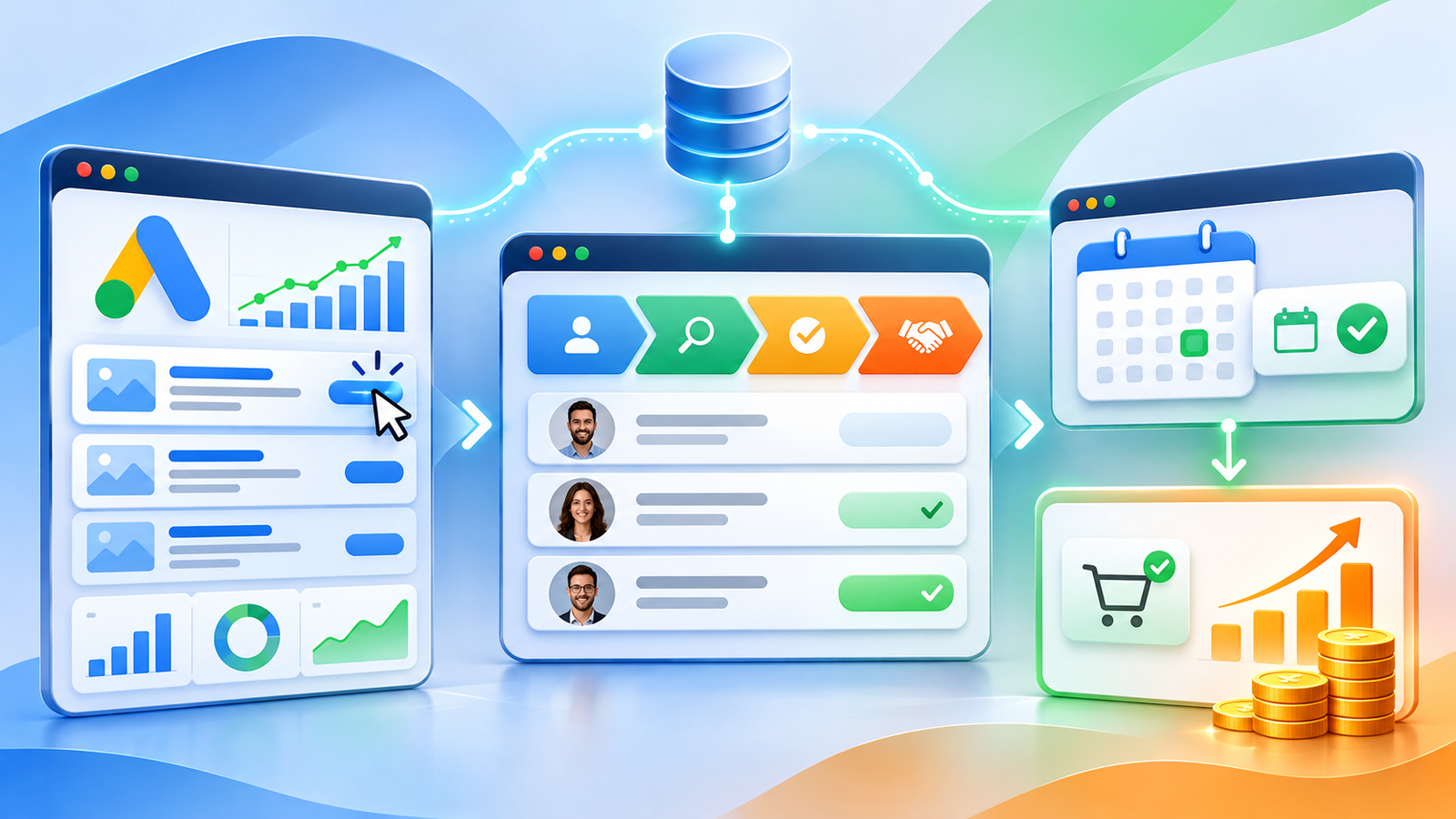
Your Google Ads account reports 100 conversions this month. Your sales team says only 35 enquiries were worth pursuing, 15 people booked appointments, and five became paying customers.
So which number tells you whether your advertising is working?
If you're only tracking form submissions, you might be optimising campaigns for people who enquire rather than people who buy.
This is a common measurement gap for businesses using Google Ads alongside GoHighLevel. Google Ads can record the initial website conversion, while the more valuable outcomes happen later inside your CRM.
GoHighLevel Google Ads conversion tracking can help connect those two parts of the customer journey. By recording qualified leads, appointments and sales as separate conversion events, you can understand which advertising activity contributes to meaningful business results.
However, getting this right requires more than connecting two accounts. You need reliable attribution data, properly defined CRM milestones, correctly configured conversion actions and a way to verify that Google Ads actually receives the information.
This guide explains how to build that tracking process, where HighLevel's native features fit, and when a more advanced integration is necessary.
Can GoHighLevel Track Google Ads Conversions?
Yes. GoHighLevel can send supported offline conversion events to Google Ads using its native Add to Google Ads workflow action. This allows businesses to connect eligible ad clicks with subsequent actions recorded in their CRM.
HighLevel also supports creating offline conversion actions through Ad Manager. For more advanced CRM milestones, Google's Data Manager and supported integrations provide additional options.
The important distinction is that creating a conversion action, recording an event in GoHighLevel and successfully attributing that event in Google Ads are three separate steps.
Why Tracking Form Submissions Alone Can Mislead Google Ads
Imagine a Manchester-based home improvement company spending £3,000 per month on Google Ads.
Its website generates quotation requests for kitchen renovations, extensions and other building projects.
Google Ads reports 100 form submissions.
At first glance, the cost per lead looks attractive:
£3,000 ÷ 100 enquiries = £30 per enquiry.
But the sales team knows that many enquiries aren't suitable.
Some people are outside the service area. Others need services the company doesn't offer. A few have unrealistic budgets, and some contact details are invalid.
Once the team reviews the enquiries, the results look different.
Customer journey stage
Monthly results
Cost per outcome
Form submissions
100
£30
Qualified leads
35
£85.71
Booked appointments
15
£200
Confirmed customers
5
£600
These figures are hypothetical and assume all the listed outcomes originate from the same Google Ads spend. They illustrate the difference between lead volume and business results.
The business doesn't necessarily have a £30 customer acquisition cost. It has a £30 cost per form submission and, in this example, a £600 cost per acquired customer.
Both numbers are useful, but they answer different questions.
If Google Ads only receives the form submission event, it has limited direct information about which enquiries later become valuable customers.
That is where offline conversion tracking becomes useful.
By sending eligible downstream events from GoHighLevel back to Google Ads, you give the advertising platform additional signals about the outcomes your business values.
This can support better measurement and inform bidding decisions. It does not guarantee lower advertising costs or more customers.
How GoHighLevel and Google Ads Conversion Tracking Works
The process begins when someone interacts with a Google ad and continues through your CRM.
A typical journey looks like this:
Google Ads click → Landing page → Form submission → GoHighLevel contact → Qualified lead → Appointment booked → Sale confirmed → Conversion event sent to Google Ads
The order in which events are sent depends on your tracking design. For example, a qualified-lead conversion may be sent as soon as qualification occurs, rather than waiting for a sale.
Each system has a different responsibility.
Google Ads records the eligible advertising interaction.
Your website or landing page captures the initial enquiry and relevant attribution information.
GoHighLevel stores the contact, manages the lead journey and records subsequent business outcomes.
A supported workflow action or integration then sends the relevant conversion information back to Google Ads.
Google attempts to match that event with an eligible ad interaction, processes the conversion and makes the result available in its reporting.
Which conversion events should you track?
Conversion event
What it means
Where it happens
Form Submitted
Someone has expressed initial interest
Website or HighLevel form
Qualified Lead
The enquiry meets agreed sales criteria
GoHighLevel CRM
Appointment Booked
A prospect schedules a consultation
Calendar or CRM
Consultation Completed
The appointment actually takes place
Appointment record or verified CRM milestone
Closed-Won Sale
The business confirms a successful sale
Opportunity or connected sales system
You don't necessarily need all five events as bidding goals.
The purpose is to distinguish different stages of commercial value and choose the appropriate measurement strategy.
Before You Start: Check Your Tracking Setup
Before configuring conversions, make sure the foundation is working.
You'll need access to the correct Google Ads account and GoHighLevel sub-account, with permissions to manage the relevant integrations and workflows.
Also check the following.
Google Ads attribution: Auto-tagging should be appropriately configured so eligible ad clicks can carry Google click identifiers.
Lead capture: Your forms, funnels and relevant integrations should reliably create or update the correct contact records.
CRM stages: Your team needs an agreed definition of what makes a lead qualified, what constitutes a valid booking and when a sale is considered confirmed.
Conversion actions: Decide which Google Ads conversion actions will represent those milestones.
Measurement settings: Review conversion windows, values, currency, count settings and campaign goals.
Data protection: Your tracking and use of customer data must follow the applicable privacy requirements.
Most importantly, test whether relevant advertising attribution information survives the journey from the landing page into the CRM.
If that information is lost, a perfectly configured workflow may still be unable to attribute the conversion.
Step 1: Connect Google Ads to GoHighLevel
The first technical step is connecting the correct Google Ads account.
For the native workflow action, HighLevel's documented setup begins inside the relevant sub-account.
Open Settings → Integrations.
Find the Google integration.
Follow the authentication process.
Select or authorise the appropriate Google Ads account.
Confirm that the intended account is connected.
If you manage Google Ads through a manager account, pay particular attention to which individual customer account owns the conversion actions.
Connecting the wrong account can result in missing conversion actions or events being directed to the wrong destination.
Check HighLevel Ad Manager
HighLevel also provides Google Ads management features under Marketing → Ad Manager.
Once the appropriate account is connected, you can access Google Ads conversion settings from Ad Manager.
Do not assume that connecting Google Ads automatically configures every offline conversion.
The connection provides access. You still need to define which events should be measured and how they will be transmitted.
If the correct account doesn't appear, review Google account permissions, the selected customer account and the integration's authorisation status before rebuilding anything.
Step 2: Create the Right Google Ads Conversion Actions
A conversion action tells Google Ads what type of business event it should measure.
For example, you might create separate actions for:
- Qualified Lead
- Appointment Booked
- Consultation Completed
- Closed-Won Sale
Each should represent a clearly defined event.
How to create an offline conversion in HighLevel Ad Manager
According to HighLevel's current Ad Manager configuration, the process is:
Open Marketing → Ad Manager.
Select the Settings icon.
Under Platform Settings, select Google Ads.
Open the Conversions tab.
Select Create a new conversion.
Enter a descriptive name.
Choose the appropriate conversion category.
Configure the count, value and conversion window.
Save the action.
HighLevel creates the supported offline conversion action in the connected Google Ads account.
For example, you might name an action:
GHL - Qualified Lead
And create another:
GHL - Closed Won Sale
The names should make it obvious what the events represent.
Choose the right count setting
Google Ads distinguishes between counting one conversion per eligible ad interaction and counting multiple conversions.
For lead generation, One is often appropriate when the same person's repeated action shouldn't count as several new leads.
For genuine repeat purchases, Every may be more appropriate.
There is also a technical consideration when using HighLevel's native Add to Google Ads action: its documentation identifies restrictions involving GBRAID/WBRAID and One-per-click counting. Check which identifiers and count options are supported by your actual integration before finalising the configuration.
Do not assume every click identifier behaves identically.
Choose meaningful conversion values
A closed sale might use a verified transaction amount or an appropriate agreed revenue measure.
A qualified lead might use a fixed estimated value based on historical performance, provided the calculation is justified.
For example, if a business consistently converts a known proportion of qualified leads into customers, it may use that information to estimate lead value.
However, an estimated lead value isn't actual revenue.
Make sure reporting doesn't confuse the two.
HighLevel's Ad Manager supports fixed values, different values and conversions without monetary values.
When using dynamic values, confirm that the event-sending method actually supports providing the intended amount.
Creating a conversion action does not send a conversion event. You must configure a supported workflow or import process separately.
Step 3: Capture GCLID, GBRAID and WBRAID Correctly
One of the most important parts of GoHighLevel Google Ads conversion tracking is preserving the connection between an advertising interaction and the resulting CRM contact.
Google uses several click identifiers.
What is GCLID?
GCLID, or Google Click Identifier, is a value associated with eligible Google Ads clicks.
When auto-tagging is enabled, Google Ads can append it to the landing-page URL.
That identifier helps connect subsequent conversion activity with the original advertising interaction.
What are GBRAID and WBRAID?
GBRAID and WBRAID are Google click identifiers used in particular privacy-sensitive measurement environments, including certain iOS-related advertising journeys.
They are not simply alternative spellings of GCLID. Their availability and supported conversion-reporting behaviour can differ.
HighLevel's native Add to Google Ads action documents support for GCLID, GBRAID and WBRAID, subject to its own configuration requirements.
How to check attribution in GoHighLevel
Start by reviewing a genuine lead generated through an appropriately configured Google Ads campaign.
Open the contact record and inspect the available attribution details and relevant stored click identifiers.
Confirm whether the lead is associated with the expected advertising source.
If a click identifier should have been captured but is missing, investigate the landing-page journey.
Common problems include:
- Redirects that remove tracking parameters.
- Forms that don't preserve relevant attribution data.
- Cross-domain journeys that interrupt tracking.
- Embedded forms or external booking systems that don't receive the necessary information.
- Incorrect or incomplete tracking configuration.
- Privacy or consent restrictions that limit collection.
Don't manufacture click identifiers for testing
A randomly typed GCLID isn't evidence of a real Google Ads interaction.
It may help test whether a field stores text, but it cannot validate genuine Google Ads attribution.
For production verification, use legitimate and appropriately authorised data, and distinguish testing the workflow from testing successful Google attribution.
Also remember that not every CRM contact came from Google Ads.
An organic search lead, referral or manually added contact may have no relevant Google Ads click identifier at all.
That doesn't mean the CRM record is defective.
Step 4: Configure the Add to Google Ads Workflow Action
HighLevel's native Add to Google Ads action provides a way to send supported conversion events from workflows to a connected Google Ads account.
A straightforward implementation might report a qualifying HighLevel form submission.
Example: Recording an eligible form submission
Open Automation → Workflows.
Create a workflow or open an appropriate existing one.
Add the Form Submitted trigger.
Configure the trigger to match the intended form.
Add the Add to Google Ads action.
Select the appropriate Google Ads conversion action.
Configure the conversion value and currency where supported.
Review any available custom mapping for click identifiers.
Save the action and publish the workflow.
Monitor its Execution Logs when a legitimate qualifying event occurs.
The conversion action must already exist and be available to the integration.
HighLevel also warns that the conversion name must match the Google Ads configuration exactly where name-based selection or matching is used.
Important: Not every CRM event has identical native support
HighLevel's documentation describes several compatible workflow scenarios, including form submissions, order purchases, surveys, number-pool calls and chat interactions.
It also references appointment-related use cases. However, its supported-trigger descriptions are not entirely consistent across the documentation.
Therefore, don't assume that every Opportunity Status, Pipeline Stage or Appointment Status trigger can use the native Add to Google Ads action in exactly the same way.
Verify the current supported trigger and action combination in your own account.
If the milestone you need isn't supported by the native route, consider a properly configured Google Ads Data Manager connection or another supported integration.
This is especially important when your goal is to report sales outcomes that happen days or weeks after the initial enquiry.
Check the execution result
After an eligible event occurs, open the workflow's Execution Logs.
Look for the Add to Google Ads action.
An executed action indicates that the HighLevel workflow reached and processed the sending step.
A skipped or failed action needs further investigation.
However, an executed workflow action doesn't independently prove that Google Ads successfully attributed and reported the conversion.
You must also check the conversion diagnostics and reporting on the Google side.
Step 5: Track Qualified Leads Instead of Every Enquiry
For many service businesses, this is the most valuable part of the entire implementation.
A qualified lead is an enquiry that meets your agreed criteria for a genuine sales opportunity.
The exact definition depends on the business.
For a UK home improvement company, a qualified lead might need to satisfy these conditions:
- The customer is within the service area.
- The requested work matches services offered.
- The project is genuine.
- The customer has supplied usable contact details.
- The project meets an agreed commercial suitability threshold.
Those criteria should be documented before creating the tracking workflow.
Represent qualification inside GoHighLevel
You might record lead qualification using a custom field, an agreed tag or an opportunity milestone.
For example:
Lead Qualification Status = Qualified
A sales representative or verified qualification process updates that field after reviewing the enquiry.
Your tracking design should then detect the first legitimate transition into the Qualified state.
The conversion should not be sent again every time someone edits the contact or reopens the opportunity.
Separate the CRM milestone from the transmission method
This distinction matters.
GoHighLevel can represent a qualification event in its CRM even when the native Add to Google Ads action doesn't support sending that event from the specific trigger you need.
In that situation, use a supported integration to transmit the event, with the appropriate identifiers, timestamp and permitted data.
If you're developing more sophisticated lead-qualification sequences, GoHighLevel workflow automation can help establish the underlying CRM milestones before connecting them to advertising measurement.
The goal is to create a reliable signal that means the same thing every time it's recorded.
Step 6: Track Booked Appointments and Completed Consultations
An appointment is a more meaningful milestone than an initial enquiry for many businesses.
However, a booked appointment and an attended appointment aren't necessarily equivalent.
Someone may schedule a consultation and later cancel it. Another prospect may book several times before attending.
If your business measures every booking as a high-value conversion, the reported performance may not reflect actual sales opportunities.
Define the appointment event
Decide which event you want to measure.
Appointment Booked: The prospect successfully schedules an appointment.
Appointment Completed: The meeting or consultation has actually taken place.
No-Show: The prospect didn't attend.
Cancelled or Rescheduled: The original booking changed and may no longer represent the same commercial outcome.
These statuses may need different tracking rules.
Set up the appropriate CRM milestone
Use the calendar or CRM process that reliably confirms the event.
For example, you may decide to record a Completed Consultation only when the appointment is marked as attended by an authorised team member.
That reduces reliance on an automatically scheduled event that doesn't prove the meeting took place.
Next, establish whether your chosen HighLevel-to-Google Ads integration can transmit that milestone.
If it can't, use a suitable supported method rather than forcing the event into an unrelated form-submission trigger.
Prevent duplicate booking conversions
Where possible, maintain a stable identifier for each appointment or commercial event.
If a booking is rescheduled, don't automatically treat it as a completely new successful consultation.
A well-designed process should distinguish between an updated appointment and a genuinely separate appointment.
That makes conversion reporting more meaningful.
Step 7: Track Closed-Won Sales and Actual Revenue
For businesses with a longer sales process, confirmed sales can be the strongest commercial signal.
In GoHighLevel, an Opportunity is often used to represent a deal.
However, moving an opportunity to a stage labelled "Won" isn't necessarily proof that money has been received.
Your business should define what counts as a completed sale.
Depending on your process, this might be:
- A signed and accepted agreement.
- A confirmed purchase.
- A paid deposit meeting your sales-recognition policy.
- An approved order.
- A verified completed transaction.
Once the event is defined, configure the CRM so that the correct opportunity status or other verified signal represents it consistently.
Send the appropriate sale value
For example, a business might sell services worth £2,500 or £8,000.
If the integration supports variable conversion values, transmitting the actual agreed revenue amount can provide more useful information than assigning the same value to every sale.
Use GBP where appropriate, and verify whether the amount should include or exclude VAT based on your measurement policy.
Keep that policy consistent across all campaigns.
What about refunds and cancelled sales?
If a sale is later reversed, the original conversion may need adjustment.
Google Ads offers supported conversion adjustment mechanisms, but you shouldn't assume HighLevel's native Add to Google Ads workflow action automatically supports every adjustment feature.
If refunds, cancellations or frequent value changes are part of your business, confirm that the chosen integration supports the required correction process.
Consider the sales cycle
Google Ads conversion windows limit which advertising interactions can be associated with later events.
A business with a lengthy sales cycle might close a deal long after the original click.
In that situation, earlier qualified-lead or consultation milestones may provide more useful measurement coverage than relying exclusively on closed sales.
Google Ads Primary vs Secondary Conversions: Which Should You Use?
Creating several conversion actions is useful for reporting, but you need to decide which ones should influence bidding.
Google Ads uses Primary and Secondary conversion action settings.
A Primary conversion action can be included in the Conversions column and used for bidding when the campaign is optimising towards the relevant goal.
A Secondary conversion action is generally used for observation and appears in All Conversions, rather than directly influencing standard goal-based bidding.
There is an important exception: secondary actions included in a selected custom goal can still be used for bidding.
Recommended decision framework
Business situation
Possible approach
Very limited downstream conversion data
Continue using a reliable earlier-funnel signal while collecting qualified-lead data
Consistent, accurately tracked qualified leads
Consider qualified leads as a primary bidding signal
Reliable appointment volume closely linked to sales
Evaluate booked or completed appointments as the optimisation goal
Sufficient, timely confirmed sale data
Evaluate sales or conversion value-based optimisation
Several funnel stages tracked
Keep less important milestones observable rather than automatically bidding towards every stage
Avoid selecting every milestone as a Primary conversion without considering the effect.
If the same customer generates a form submission, qualified lead, appointment and sale, treating all four as independent primary success events can distort what your campaigns optimise for.
Also avoid changing conversion goals repeatedly over short periods.
Smart Bidding needs reliable signals and time to respond to changes.
The best setup depends on data quality, conversion volume, campaign objectives and the time between the ad click and the final commercial outcome.
Do You Need Enhanced Conversions for Leads?
Google's Enhanced Conversions for Leads is an upgraded approach to offline conversion measurement.
It can use appropriately collected first-party customer information, such as email addresses, to help match offline outcomes with advertising interactions.
This is particularly relevant when click identifiers alone don't provide adequate measurement coverage.
However, Google's broader enhanced-conversion capabilities shouldn't be confused with HighLevel's native workflow action.
Native HighLevel action vs Google Data Manager
Feature
Native HighLevel workflow action
Google Data Manager or supported integration
Core purpose
Send supported workflow conversion events
Import supported offline customer events
Typical matching
Supported Google click identifiers
Supports relevant identifiers and eligible first-party matching approaches
Workflow compatibility
Depends on HighLevel action support
Depends on the configured data source and integration
Advanced data transformation
Limited to available configuration
Potentially more flexible
Ongoing maintenance
Workflow and account connection
Connector, data pipeline and validation
Best use
Straightforward supported events
Complex CRM-stage events or advanced attribution requirements
Google's Data Manager is now the recommended route for many new offline conversion integrations.
From June 2026, Google introduced restrictions on new offline conversion uploads through legacy Google Ads API routes. Some existing integrations retain specific legacy access, but new custom implementations should be designed around Google's current Data Manager API guidance.
This doesn't establish that HighLevel's native feature is broken. It means developers should not assume that an old Google Ads API tutorial remains suitable for a new integration in 2026.
If you're considering Enhanced Conversions for Leads, evaluate the required website tagging, first-party data handling, Google account configuration and supported import method together.
Hashing customer information doesn't remove your data protection responsibilities.
How to Test GoHighLevel Google Ads Offline Conversions
A conversion tracking setup should be tested at several points.
Testing only the workflow isn't enough.
1. Confirm the original event
Check that the relevant form submission, booking or sales milestone was recorded correctly in GoHighLevel.
2. Check the attribution information
Confirm that the appropriate Google Ads click information is available where the native or chosen integration requires it.
If no eligible identifier or supported matching data exists, the event may not be attributable.
3. Verify the workflow or integration
Inspect the relevant execution history.
Confirm that the expected event reached the correct sending action.
4. Check the transmission outcome
Review the available integration status, failure information or import results.
A CRM event can exist without ever being successfully transmitted to Google.
5. Check Google Ads processing
Open the relevant conversion action in Google Ads → Goals → Conversions and review its available status and diagnostics.
Look for import errors, missing data or processing issues.
Depending on the method and processing schedule, conversions may take time to appear in reporting.
6. Check attribution and reporting
Confirm that Google Ads attributed the accepted event to an eligible advertising interaction.
Not every successfully uploaded CRM event will become a reported Google Ads conversion.
Also check the relevant date ranges, conversion settings and reporting columns.
7. Avoid contaminating live performance data
Don't generate fake advertising clicks, fabricate customer conversions or repeatedly submit production events simply to see a number increase.
Use available diagnostics, safe testing methods and authorised data, and keep internal validation records separate from real campaign performance wherever possible.
Why Are GoHighLevel Google Ads Conversions Not Showing?
If you have configured the integration but your conversions aren't appearing, work through the following diagnostic checks.
Problem
What to check
Recommended next step
Wrong Google Ads account
Connected customer account and conversion ownership
Connect the correct account
Missing click identifier
Contact attribution details and landing-page tracking
Investigate tracking continuity
Conversion action not visible
Account permissions and action configuration
Check synchronisation and action type
Workflow never executed
Trigger filters and Enrollment History
Fix the CRM event condition
Google Ads action skipped
Execution Logs and required data
Investigate missing identifiers or mismatched action
Incorrect conversion value
Currency and value mapping
Correct the agreed value configuration
Conversion occurred too late
Conversion window and event timestamps
Review attribution eligibility
Duplicate conversion
Existing event records and sending methods
Establish deduplication rules
Event accepted but not reported
Google Ads diagnostics and attribution
Check processing, matching and date range
Primary goal not counting
Campaign goals and conversion settings
Check bidding and reporting configuration
Privacy restrictions
Consent state and available data
Review lawful and permitted measurement
A few situations deserve particular attention.
The workflow executed, but Google Ads shows no conversion
An executed workflow step doesn't guarantee Google successfully matched the event.
Check the Google Ads conversion action's diagnostics and the relevant attribution information.
Google Ads and GoHighLevel show different totals
The platforms measure different things.
GoHighLevel may count every CRM lead or opportunity.
Google Ads reports conversions that satisfy its attribution, counting and reporting rules.
Some leads may come from organic search, referrals or other campaigns.
Other events may fall outside the conversion window or lack eligible matching data.
A difference between totals isn't automatically a bug.
The same conversion appears twice
Check whether the event is being sent from more than one source.
For example, a website tag and a separate offline import may both represent the same underlying lead event.
Use appropriately designed conversion actions, deduplication identifiers where supported and a clear ownership rule for each event.
Don't assume Google will automatically deduplicate every pair of apparently similar conversions.
Conversion data has stopped flowing
Check whether Google Ads permissions changed, an integration lost authorisation, a workflow was unpublished or a tracking field was modified.
If multiple automations are involved, GoHighLevel technical support can help isolate whether the failure is within the CRM or the connection to Google Ads.
UK GDPR, Consent and Conversion Tracking
If your business operates in the UK, conversion tracking needs to be configured with the relevant privacy rules in mind.
Google Ads attribution can involve click identifiers, website tracking technologies and personal information used for matching.
Under PECR, storing or accessing information on a user's device for online advertising measurement generally requires appropriate consent, subject to the applicable rules and exceptions.
The UK GDPR also applies when personal data is processed.
Your setup should account for:
- Clear privacy information about relevant tracking and data sharing.
- Appropriate consent for applicable advertising cookies and technologies.
- Accurate implementation of consent choices.
- Google's relevant customer data policies.
- Data minimisation and controlled access.
- Appropriate retention and security practices.
- Any relevant processor and international transfer arrangements.
Google Consent Mode can help communicate consent choices to supported Google tags, but it doesn't replace obtaining legally required consent.
Similarly, hashing customer information for Enhanced Conversions for Leads doesn't automatically make the data anonymous or remove GDPR obligations.
Businesses with complicated data flows should review both the technical setup and the underlying privacy requirements before enabling new data-sharing processes.
When Should You Hire a GoHighLevel Google Ads Integration Specialist?
A straightforward form conversion may be relatively easy to configure.
The work becomes more complicated when your business needs to connect several CRM milestones to Google Ads and ensure that the resulting data is accurate.
Professional implementation may be useful when:
- You manage multiple Google Ads accounts or GoHighLevel sub-accounts.
- Leads are qualified through several workflow stages.
- Bookings and completed appointments require separate tracking.
- You want to send actual sales values to Google Ads.
- Conversion imports are rejected or intermittently missing.
- Existing tags and offline imports appear to double-count events.
- You need Enhanced Conversions for Leads or a custom Data Manager integration.
- Your tracking depends on several domains, forms or external systems.
Before building more automation, establish which business outcomes actually need tracking and which method can reliably transmit them.
GHL Experts provides GoHighLevel integration services for UK businesses and marketing agencies, including Google Ads conversion tracking, analytics, attribution and custom API integrations.
The aim is to establish a documented flow from your CRM to your advertising platform, with appropriate testing, error handling and ongoing visibility. Final Thoughts: Measure the Leads That Actually Matter
Getting more form submissions isn't always the same as getting better results from Google Ads.
A business can generate plenty of enquiries while struggling to book appointments or convert prospects into customers.
GoHighLevel can help close that measurement gap by recording what happens after the initial lead enters your CRM.
But accurate conversion tracking depends on having the right foundations.
You need reliable attribution, clear definitions of qualified leads and sales, correctly configured conversion actions, a supported method for sending events and proper validation inside Google Ads.
Start with the outcomes that matter most to your business. Make sure the data is dependable before changing bidding strategies, and avoid treating every customer interaction as an equally valuable conversion.
Need help connecting GoHighLevel with Google Ads conversion tracking?
GHL Experts helps UK businesses and marketing agencies implement CRM integrations, track qualified leads and commercial outcomes, and troubleshoot unreliable conversion data.
Explore GoHighLevel Google Ads Integration Services to discuss your existing setup, attribution requirements and the conversion events you need to measure.