
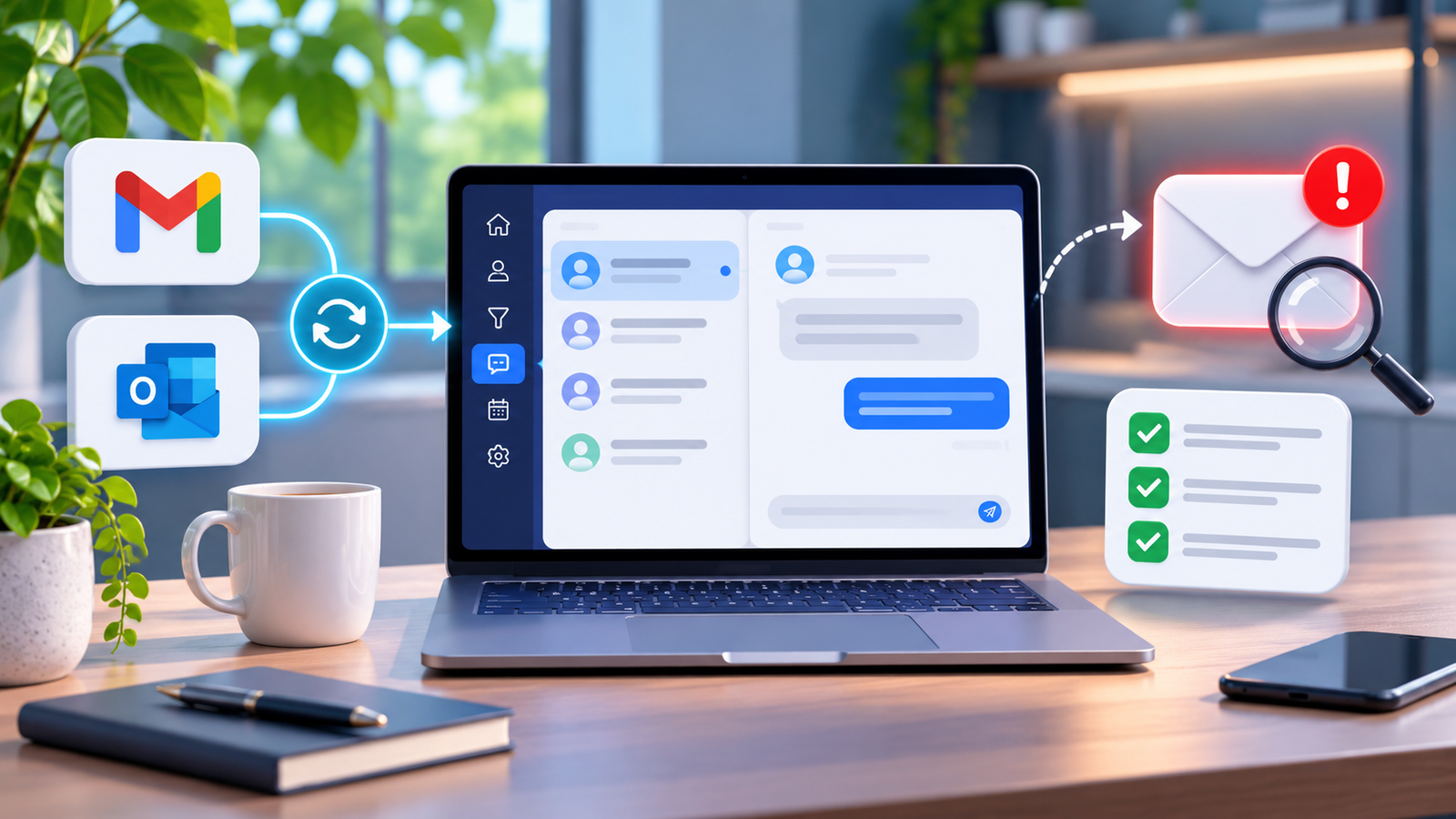
A prospective buyer emails a London estate agency to arrange a property viewing. The message arrives in the agency's Microsoft 365 inbox, but nobody notices it because the sales team manages customer enquiries through GoHighLevel Conversations.
Existing customers' email replies appear correctly in the CRM. New enquiries do not.
The agency assumes its email synchronisation is working because the Outlook connection shows as active. Unfortunately, the buyer's first enquiry is overlooked.
This is a common source of confusion when troubleshooting GoHighLevel inbound emails not showing in Conversations.
An email can arrive successfully in Gmail or Outlook without qualifying for synchronisation into HighLevel. The cause depends on the sender, the connected email service, contact matching, inbound routing and workflow configuration.
Short Answer: Why Are Inbound Emails Not Showing in GoHighLevel?
GoHighLevel inbound emails may be missing because Gmail or Outlook two-way sync does not capture every unknown sender, mailbox permissions have expired, Reply-To settings redirect messages, or the receiving domain is incorrectly configured. Contact matching, workflow filters and Conversations visibility can also prevent enquiries appearing. First determine whether the sender is a new prospect or an existing CRM contact.
Why Are GoHighLevel Inbound Emails Not Showing in Conversations?
Before changing any settings, answer one question:
Was the missing message sent by someone already saved as a GoHighLevel contact, or by a completely new sender?
This distinction determines which troubleshooting path makes sense.
Gmail and Outlook two-way sync primarily supports qualifying email exchanges with existing contacts and conversations initiated through supported methods.
It is not a complete replication of every message in the user's personal inbox.
HighLevel also provides an Inbound Email workflow trigger, which can process first-contact messages from unknown senders when a supported LC Email or Mailgun dedicated domain is configured correctly.
However, successfully receiving an email, creating a contact, executing a workflow and displaying a message to the sales team are separate events.
A business must verify each stage.
First, Identify Your Missing Email Problem
Use this diagnostic table before changing your email configuration.
| Symptom | Likely Cause | First Check |
|---|---|---|
| New customer email missing | Cold inbound limitation | Is the sender an existing contact? |
| Existing contact reply missing | Sync or routing problem | Check original conversation |
| Gmail receives email but CRM does not | Unsupported sender or connection issue | Check contact matching |
| Outlook receives email but CRM does not | Microsoft permissions or sync limitation | Check connected mailbox |
| Two-way sync disconnected | Expired or revoked authorisation | Review connection status |
| Inbound Email trigger not firing | Unsupported route or incorrect filters | Check workflow configuration |
| Email received but no contact created | Contact creation not configured | Inspect trigger settings |
| Replies arrive in another mailbox | Reply-To redirection | Review Email Services |
| Email appears under wrong contact | Contact association problem | Check sender addresses and duplicates |
| Message appears in wrong location | Sub-account or domain conflict | Check account ownership |
| Duplicate notifications | Overlapping workflows | Review trigger execution |
| Sales representative cannot see email | Filters or permissions | Review assigned users |
A successful outbound test does not prove incoming lead capture is working.
Both directions must be tested independently.
How Inbound Emails Work in GoHighLevel
Different email integrations have different capabilities.
Email configuration comparison matrix
| Email Setup | New Unknown Sender | Existing Contact Emails | Main Limitation |
|---|---|---|---|
| Gmail two-way sync | Not supported as general cold inbound capture | Supported qualifying conversations | Not a full inbox mirror |
| Outlook two-way sync | Not supported as general cold inbound capture | Supported qualifying conversations | Personal mailbox and contact limitations |
| LC Email shared domain | No general cold inbound capture | Replies to HighLevel emails | Limited inbound handling |
| LC Email dedicated domain | Supported with correct inbound setup | Supported | Requires correct receiving configuration |
| Mailgun dedicated domain | Supported with correct routing | Supported | Receiving routes and MX records must be configured |
| Other SMTP providers | No general cold inbound capture | Supported configurations may track replies | Depends on provider and reply tracking |
These distinctions are documented in HighLevel's Inbound Email workflow trigger guide.
A dedicated sending domain should not be confused with a traditional hosted inbox.
Gmail or Outlook is generally where staff read their normal business email. LC Email and Mailgun provide separate email infrastructure whose inbound handling depends on the configured domain and routing.
New sender versus existing contact decision tree
Follow the email through these checks:
- Did the message reach the original mailbox? If not, investigate email delivery, address validity and provider routing.
- Is the sender already a HighLevel contact? If yes, investigate supported two-way sync and conversation matching.
- Which provider handles the message? Distinguish Gmail, Outlook, LC Email, Mailgun and other SMTP configurations.
- Does the configuration support cold inbound emails? If not, reconnecting the same mailbox will not add that capability.
- Is the intended receiving domain configured? Confirm the destination, domain ownership and provider settings.
- Did the Inbound Email workflow execute? Review trigger filters and execution history.
- Was the contact identified or created? Check matching and contact creation settings.
- Is the conversation visible? Review the correct sub-account, user permissions and inbox filters.
This approach helps identify the actual failure rather than making changes based on assumptions.
Step 1: Check Whether the Sender Already Exists as a Contact
Open the correct HighLevel sub-account and navigate to Contacts.
Search for the sender's complete email address, not just their name.
Check whether multiple contacts share the address or whether the expected contact exists in another sub-account.
Open the relevant contact record and inspect its conversation history.
Also confirm that the email was sent from the exact address stored against that contact. A prospect may use one address for a website form and another for a subsequent enquiry.
If the contact exists but the email is missing, investigate synchronisation, routing and visibility.
If the person does not exist, first determine whether the email configuration supports first-contact capture.
Do not automatically import every unknown sender without considering the business's data-handling requirements.
Step 2: Understand Why Gmail and Outlook Two-Way Sync Miss New Emails
Consider a UK recruitment agency using a connected Gmail account.
An existing candidate emails the recruiter. Their address already exists in HighLevel, so the qualifying conversation can synchronise.
A new candidate emails the same recruiter without previously interacting with the CRM.
The second email may remain in Gmail without appearing in HighLevel.
This does not necessarily indicate that the Gmail connection has failed.
What two-way sync actually supports
HighLevel documents supported behaviour including:
- Emails from existing CRM contacts.
- Individual conversations initiated from HighLevel.
- Subsequent replies in supported threads.
- Contact creation through supported BCC-based outbound logging.
- Synchronisation between connected personal mailboxes and qualifying CRM conversations.
BCC-based contact creation is not the same as capturing unsolicited incoming emails.
When a user sends a new message from Gmail or Outlook and includes the HighLevel BCC address, HighLevel can create the relevant contact and conversation.
That does not mean every unknown person who emails the business will automatically become a contact.
The distinction is explained in HighLevel's Gmail two-way sync documentation.
Step 3: Check Your Gmail Two-Way Sync Connection
If supported Gmail messages are missing, verify the connection before reconnecting anything.
- Open the intended sub-account.
- Navigate to Settings → My Profile.
- Locate Email (2-way sync).
- Confirm the correct Google account is connected.
- Check that the user has access to the relevant sub-account.
- Look for connection errors or missing permissions.
Next, create a controlled test using an authorised email address that already exists as a CRM contact.
Send an individual email through HighLevel and reply to the message from Gmail.
Confirm whether the response appears in the appropriate conversation.
If this works but an unknown sender's first message does not, the likely issue is the supported scope of the integration rather than a disconnected mailbox.
Avoid disconnecting a live production account merely because one unsupported test fails.
Also remember that Gmail personal two-way sync is not the sending infrastructure for every automated campaign. Workflow and bulk emails generally use the sub-account's configured email provider.
Step 4: Fix Outlook and Microsoft 365 Two-Way Sync Problems
Microsoft 365 introduces additional considerations involving organisational permissions and user accounts.
Open Settings → My Profile → Email (2-way sync) within the intended sub-account.
Confirm that the connected Outlook or Microsoft 365 address is the mailbox actually receiving the messages.
Then check:
- Whether the sender is an existing CRM contact.
- Whether the email belongs to a supported conversation.
- Whether Microsoft authorisation is still valid.
- Whether the correct user connected the mailbox.
- Whether the email was delivered to a personal or shared mailbox.
- Whether organisational access policies have changed.
HighLevel documents that emails from contacts who are also users of the same sub-account are excluded from normal Outlook synchronisation for confidentiality reasons.
A shared Microsoft 365 mailbox should not be assumed to behave exactly like a connected personal Outlook inbox.
Another important distinction concerns attachments. HighLevel's Outlook documentation specifies a 3 MB supported attachment limit for this sync. An unusually large attachment may explain why a particular message fails while ordinary text replies work.
If the problem continues, test a known contact and a CRM-initiated conversation separately.
Step 5: Fix “Insufficient Permission for 2-Way Sync”
This error indicates an authorisation problem rather than an ordinary cold inbound limitation.
Possible causes include revoked Google or Microsoft permissions, security-policy changes, an expired connection or a change to the connected account.
HighLevel's documented troubleshooting process is:
- Navigate to Settings → Email Services.
- Locate the affected connection.
- Check whether an authorisation error is displayed.
- Use the available reconnect option when appropriate.
- Sign in with the correct Google or Microsoft account.
- Approve the necessary permissions.
- Retest an email conversation with an existing contact.
For Microsoft 365 organisations, an administrator may need to review third-party application permissions.
Do not weaken security policies or expose authentication tokens to force the integration to work.
If authorisation succeeds but supported emails still fail, collect the relevant error details for HighLevel Support.
Reauthorising a mailbox can restore access. It cannot make an unsupported cold inbound configuration behave like a dedicated receiving domain.
Step 6: Set Up the Inbound Email Workflow Trigger Correctly
HighLevel's Inbound Email trigger provides an additional method for processing incoming messages.
It is particularly relevant when the business wants to identify new sales enquiries from senders who have not previously entered the CRM.
Example: A dedicated sales enquiry workflow
For a UK business using a supported dedicated receiving domain:
- Open Automations → Workflows.
- Create a workflow for inbound sales enquiries.
- Select Add New Trigger → Inbound Email.
- Give the trigger a recognisable name.
- Choose the appropriate Email Sent To / Mailbox filter.
- Configure the available contact creation settings.
- Review whether the workflow should process existing thread replies.
- Add suitable lead assignment and staff notification actions.
- Save and publish the workflow.
- Test using an authorised external sender.
For first-contact lead processing, the Trigger Only for New Email Conversations setting can help restrict execution to new threads.
The official documentation identifies an Automatically create a contact option. However, it also contains wording suggesting a pre-existing contact may be needed in some circumstances.
Therefore, verify the exact behaviour in your current account using a controlled unknown-sender test. Do not assume that enabling the setting alone guarantees contact creation for every provider.
The underlying receiving configuration must support the inbound message first.
Step 7: Inbound Email vs Customer Replied Trigger
These workflow triggers are related but are not interchangeable.
| Trigger | What It Detects | Best Use Case | Common Mistake |
|---|---|---|---|
| Inbound Email | Supported incoming email events, including qualifying first-contact messages | New enquiry capture and routing | Assuming all mailbox providers support cold inbound |
| Customer Replied | A contact replying to an earlier message | Reply notifications and conversation-based follow-up | Expecting it to handle every unsolicited first email |
The Customer Replied trigger supports a Reply Channel filter, allowing businesses to focus on email responses rather than SMS or other channels.
The Inbound Email trigger offers email-specific criteria such as recipient, sender, subject and message body.
If both triggers handle the same reply, two workflows may execute.
For example, a customer replying to a quotation could generate two staff notifications or duplicate follow-up actions.
Separate first-contact lead handling from ongoing reply management and test the conditions of both workflows.
Step 8: Fix Cold Inbound Emails from Unknown Senders
A cold inbound email is an incoming message from someone who is not yet recognised as a CRM contact.
It is not necessarily a cold marketing email.
For example, a homeowner emailing a roofing contractor for the first time is sending a cold inbound enquiry from the CRM's perspective.
An existing Gmail or Outlook connection alone should not be relied upon to capture every such message.
HighLevel identifies LC Email and Mailgun dedicated domains as the supported configurations for full cold inbound capture through the Inbound Email trigger.
A relevant GoHighLevel community discussion describes replies appearing correctly while brand-new emails remain missing, illustrating why these two cases must be tested separately.
Before implementing cold inbound capture, identify the actual email address customers use, where that address receives its mail and whether the dedicated receiving domain is part of that route.
Do not assume that enabling the workflow trigger redirects messages from the company's existing inbox.
Step 9: Check Your LC Email or Mailgun Dedicated Domain
A dedicated email domain needs to be associated with the correct HighLevel location.
Inspect Settings → Email Services and the relevant domain configuration.
Confirm the domain is verified, assigned to the intended sub-account and configured for the required inbound functionality.
For Mailgun, check the receiving route as well as the domain's DNS configuration.
For LC Email, distinguish the dedicated sending-domain setup from the actual inbound handling of the addresses customers will contact.
A verified sending domain is not automatically a normal hosted email inbox.
Before testing, record the complete receiving address and check whether it belongs to the dedicated domain or an external email provider.
Send a controlled message to that destination and inspect the provider's available records and HighLevel workflow execution.
If an agency manages several client locations, use a clear domain ownership register to avoid routing messages into the wrong account.
Step 10: Fix MX Records and Inbound Email Routing
MX records tell sending mail servers which systems accept incoming email for a domain.
Incorrect MX configuration can prevent messages reaching the intended provider.
The most important distinction is between the business's root domain and a dedicated subdomain.
For example:
- Root domain: agency-example.co.uk
- Dedicated subdomain: mg.agency-example.co.uk
A business using Microsoft 365 for its normal mailbox may have MX records directing email to Microsoft.
If the same root domain is redirected to Mailgun without a suitable receiving plan, the existing company mailbox can stop receiving emails.
Never replace production Google Workspace or Microsoft 365 MX records simply to enable GoHighLevel cold inbound capture.
A dedicated subdomain can allow separate Mailgun routing without disrupting the existing root-domain mailbox.
Before making changes, check the current DNS records, identify the actual receiving provider and follow the provider-specific configuration instructions.
HighLevel's Mailgun cold inbound setup guidance explains the root-domain conflict and recommended subdomain approach.
After an approved DNS change, allow for propagation and repeat the end-to-end test.
Do not assume a correct MX lookup proves that workflows, contact creation and staff notifications are also working.
Step 11: Fix Reply-To and Email Forwarding Problems
An email's visible sender is not necessarily where a recipient's response will be delivered.
| Setting | Purpose | Possible Effect |
|---|---|---|
| From address | Identifies the apparent sender | Influences sender identity |
| Reply-To address | Defines where the response is directed | May route replies outside Conversations |
| Forwarding Address | Sends copies of supported replies to another inbox | Helps staff monitor replies without replacing their CRM route |
| BCC | Sends a hidden copy or supports specific logging processes | Does not universally capture new inbound messages |
| Dedicated reply domain | Supports provider-specific reply handling | Requires correct routing |
Navigate to Settings → Email Services → Reply & Forward Settings.
HighLevel documents that adding a Reply Address can direct responses to that address instead of the Conversations tab.
A Forwarding Address serves a different purpose: it can provide a staff member with a copy of a reply while the original reply remains available through the supported HighLevel route.
HighLevel notes that some forwarding and BCC functions are limited to LC Email and Mailgun configurations.
Consider a quotation email sent from HighLevel.
If its Reply-To address is an external staff mailbox, the customer's response may arrive there rather than being recorded in the intended HighLevel conversation.
Inspect the actual email headers and the configured reply destination before changing the setting.
Step 12: Why Replies Appear in Gmail but Not GoHighLevel
When Gmail contains a customer's reply but HighLevel does not, focus on the specific conversation.
Check whether:
- The sender is a recognised CRM contact.
- The message belongs to a qualifying synced thread.
- The correct Gmail account is connected.
- The correct user and sub-account are selected.
- The connection remains authorised.
- The original message used the expected Reply-To address.
- The conversation is hidden by a filter or assignment.
- The sender is also an internal HighLevel user.
Compare the original email and reply timestamps.
If messages are visible in the original inbox but absent from both the contact history and Conversations, the issue may involve synchronisation or routing.
If the message exists under the contact but the sales representative cannot see it, investigate visibility instead.
Do not treat these as the same failure.
Step 13: Why Replies Appear in Outlook but Not GoHighLevel
For Microsoft 365, determine whether the reply belongs to the authorised personal mailbox.
A company may use a shared enquiry inbox while individual sales representatives connect their own Outlook accounts to HighLevel.
A message arriving at the shared address does not necessarily qualify for the same personal two-way synchronisation.
Review the connected user, Microsoft account permissions, applicable organisational policies and contact association.
If the problem began after an administrator updated security settings, check whether HighLevel's application permissions remain valid.
Also verify whether the message predates the connection. HighLevel does not backfill historical Outlook email through ordinary two-way sync.
Test with a new message from an existing contact before changing the integration.
Step 14: Fix Conversations Filters and User Visibility
Sometimes the email exists in HighLevel but the intended employee cannot find it.
Open Conversations and confirm the correct location is selected.
Review the channel filter, conversation search, assigned user and any open, closed or archived conversation views.
HighLevel's newer Conversations experience also includes filtering that can change which records appear to staff.
Search directly for the sender's email address and inspect their contact record.
Then determine whether the conversation is assigned to another representative or restricted by the user's access.
Do not change permissions for an entire team just to make one missing message visible.
Apply the minimum appropriate access after checking privacy requirements.
Step 15: Fix Inbound Email Trigger Filters Blocking Enquiries
A valid incoming email can fail to start a workflow when it does not match the trigger filters.
HighLevel supports criteria including:
- Email Sent To / Mailbox
- From
- Subject
- Body
- CC
- Has Attachments
- Replied to Workflow
- Contact Tag
Imagine that an agency configures its workflow to match sales@agency-example.co.uk, but the email being processed is actually addressed to a different dedicated receiving address.
The trigger may never match.
Likewise, a subject filter requiring the word “quotation” could exclude legitimate enquiries asking for a “price” or “estimate”.
Review the available operators and test one criterion at a time.
Use a temporary, narrowly scoped test workflow where appropriate rather than changing production-wide filters without documenting their original values.
Step 16: Fix Missing Contacts After Receiving Emails
An inbound email reaching the provider does not automatically prove that HighLevel has created the intended CRM record.
Inspect the workflow's contact creation settings and identify whether an existing contact was matched.
For a controlled unknown-sender test, check whether the workflow executes, whether a new contact appears and whether the sender's email address is recorded correctly.
If a contact is created successfully, verify subsequent steps such as tagging, assignment and staff notifications.
Avoid using the email address alone as proof that a new lead is ready for sales follow-up.
A complete process should also establish ownership and prevent avoidable duplicate records.
Any opportunity creation should be handled through an explicitly configured workflow action and suitable duplicate-prevention logic.
For more advanced lead routing, consider a reviewed GoHighLevel automation setup rather than relying on contact creation alone.
Step 17: Why Email Replies Trigger Duplicate Workflows
Repeated email notifications often occur because separate workflows respond to the same event.
For example, an Inbound Email workflow and a Customer Replied workflow may both match a customer's reply.
Another possibility is a workflow that allows re-entry and executes repeatedly as the conversation continues.
Check the execution history of both workflows against the same message timestamp.
For first-contact capture, consider restricting the Inbound Email trigger to new conversations.
For established customer threads, use a separately filtered Customer Replied workflow where appropriate.
Ensure that opportunity creation, acknowledgements and notifications cannot repeatedly execute without a business reason.
Do not disable every workflow globally. Isolate the overlapping conditions and verify the result with controlled tests.
Step 18: Fix Email Routing Across Multiple Sub-Accounts
This is particularly important for marketing agencies.
An agency managing several client locations may reuse domains, connected users or email accounts without documenting their ownership.
HighLevel warns that the same dedicated email domain configured across different sub-accounts can produce unpredictable routing.
Its Gmail documentation also describes complications when the same personal mailbox is synchronised across multiple locations.
For each client, record the sub-account, connected mailbox, dedicated domain, responsible user and intended sales team.
Check that email from one client cannot appear in another client's CRM.
If an inherited setup has undocumented integrations or shared permissions, a structured GoHighLevel account audit can help identify the configuration before anything is changed.
Step 19: How to Test GoHighLevel Inbound Email Properly
One successful message is insufficient to validate the whole system.
Run four controlled scenarios using authorised test addresses.
| Test | Action | Expected Investigation |
|---|---|---|
| A: Unknown sender | Send a first email from an address absent from CRM | Verify cold inbound support and contact creation |
| B: Existing contact | Send from a saved CRM contact | Verify qualifying two-way synchronisation |
| C: CRM-initiated reply | Send from HighLevel and reply to it | Verify threading and reply routing |
| D: Dedicated receiving address | Send directly to the configured inbound destination | Verify domain routing and workflow execution |
For each test, document the sender, recipient, provider, message timestamp and expected destination.
Then confirm whether the message was received, matched to a contact, displayed in Conversations, processed by the intended workflow and followed by a staff notification.
Different configurations will have different expected outcomes.
A Gmail-only setup should not be marked as broken simply because it does not pass the dedicated-domain cold inbound test.
Hypothetical UK business example
A Manchester property agency receives enquiries at sales@agency-example.co.uk.
It uses Microsoft 365 and has Outlook two-way sync connected to HighLevel.
Existing clients' replies appear successfully, but enquiries from new buyers do not.
The agency first checks that the incoming messages exist in Microsoft 365 and that those buyers are not already CRM contacts.
It then confirms that Outlook two-way sync alone does not provide the general cold inbound capture it expected.
Rather than replacing Microsoft 365 MX records, the agency evaluates a dedicated inbound route and suitable workflow configuration.
The new route is tested independently before any customer-facing process is changed.
This is a hypothetical scenario, not a claimed client result.
Step 20: Recover Customer Enquiries Missing from Conversations
Once the configuration problem is understood, investigate whether genuine enquiries were missed.
Determine the affected dates using mailbox activity, the last successful test and available workflow records.
Search the original Gmail or Outlook inbox, including relevant folders, for messages requiring a response.
Review Mailgun or LC Email records where available, together with existing contacts and website form submissions.
Before manually creating or importing leads, check whether the people already exist in the CRM.
Prioritise time-sensitive sales enquiries and assign them to the appropriate staff members.
Review whether any proposed follow-up is still relevant, lawful and appropriate.
Do not promise that historical emails can all be imported back into their original Conversations threads.
HighLevel's personal mailbox synchronisation does not generally backfill messages from before the connection was established.
Avoid reactivating old automated sequences in bulk without checking their conditions and data permissions.
Step 21: Prevent Missing Inbound Leads with Monitoring
The most reliable monitoring strategy checks the complete enquiry journey rather than the status of the email connection alone.
Periodically send controlled test enquiries through the supported business email routes.
Review mailbox permissions, dedicated domains, workflow errors and staff assignment rules after configuration changes.
For a business receiving substantial email enquiries, periodically reconcile the number of genuine requests received by its primary mailbox with the corresponding CRM contact or enquiry records.
Document who owns each mailbox and which sub-account processes its messages.
The end-to-end success signal is:
Email received → Message captured → Contact identified or created → Correct sales team notified → Enquiry followed up.
A connected mailbox indicator confirms only part of that process.
Common GoHighLevel Inbound Email Problems and Fixes
| Problem | Likely Cause | Recommended First Action |
|---|---|---|
| New emails not appearing | Unknown sender limitation | Check provider support |
| Gmail replies missing | Contact or thread mismatch | Verify original conversation |
| Outlook replies missing | Authorisation or unsupported thread | Check Microsoft connection |
| Insufficient permission error | Revoked access | Review OAuth authorisation |
| Replies going elsewhere | Reply-To configuration | Inspect Reply & Forward Settings |
| Mailgun emails missing | Receiving route or MX issue | Verify provider routing |
| LC Email cold inbound missing | Dedicated inbound setup incomplete | Review domain configuration |
| Shared domain problems | Unsupported cold inbound route | Check dedicated-domain requirements |
| Wrong sub-account | Domain or user association | Review account ownership |
| Contact not created | Contact setting or matching issue | Run controlled new-sender test |
| Workflow not running | Filters or publication | Inspect execution history |
| Duplicate notifications | Overlapping triggers | Compare workflow executions |
| Message hidden from staff | Filters or permissions | Search contact conversation |
| Historical messages missing | No retrospective sync | Review original mailbox |
Final GoHighLevel Inbound Email Capture Checklist
Before considering your inbound email system operational, confirm the following:
- The correct sub-account is selected.
- The intended receiving mailbox is identified.
- The email provider supports the expected inbound behaviour.
- Existing contact matching has been checked.
- Dedicated domain ownership and configuration are verified.
- MX records and receiving routes have been checked safely.
- Reply-To and forwarding settings are understood.
- Gmail or Outlook permissions are valid.
- Inbound Email trigger filters match the intended messages.
- Contact creation has been tested where required.
- Conversations are visible to the appropriate team.
- Staff notifications and assignment work correctly.
- A complete new enquiry test has passed.
If any of these checks fail, investigate that specific stage rather than rebuilding the entire integration.
When Should You Hire a GoHighLevel Email Integration Specialist?
Professional support becomes valuable when the problem threatens customer enquiries or requires changes to a live email environment.
Examples include repeated failures to capture new prospects, Microsoft 365 authorisation problems, unexpected Reply-To routing, conflicting Mailgun MX records or messages appearing across the wrong client sub-accounts.
An experienced specialist should establish which email routes exist, which ones are supported, where messages stop moving and what configuration changes can be made safely.
GHL Experts UK provides technical troubleshooting for existing HighLevel accounts, including integration failures, workflow repairs, permission issues and email configuration investigations.
The agency's published support options start at £395 for one-off assistance or £75 per hour. The appropriate scope and cost depend on the actual problem.
If enquiries are arriving in an external mailbox but missing from the CRM, explore GoHighLevel technical support for UK businesses.
For more complex mailbox, provider or system connections, the agency also offers GoHighLevel integration support.
A professional investigation should explain whether the situation involves a repairable configuration failure or an existing platform limitation.
Conclusion: Fix the Email Journey, Not Just the Connection
When GoHighLevel inbound emails are missing, begin with the sender and the original receiving mailbox.
Determine whether the message came from an existing contact or a new prospect, then inspect the email provider, two-way sync, dedicated domain, routing, workflow filters and conversation visibility.
Not every missing email is evidence of a broken integration. Sometimes the system is operating within its documented limitations.
The goal is to establish a reliable process that captures supported enquiries, assigns the correct contacts and ensures the sales team can respond.
Missing customer enquiries because your GoHighLevel inbound email setup is not working as expected?
Get professional GoHighLevel technical support from GHL Experts UK. The team can investigate email synchronisation, receiving domains, routing and workflow configuration, identify the cause and recommend appropriate repairs without unnecessary disruption to your existing business email service.