
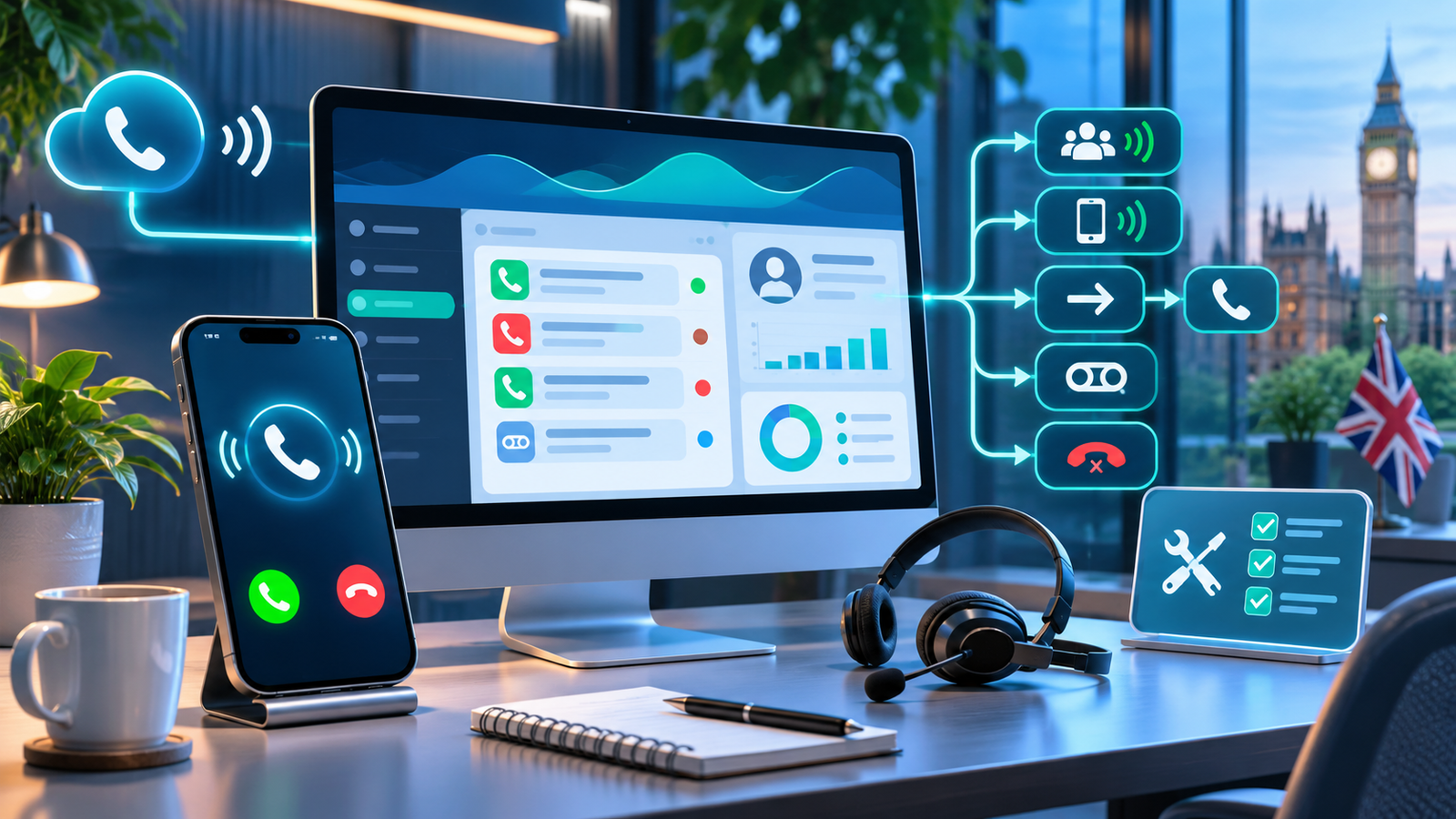
A customer calls your business, but nobody's phone rings. A few seconds later, the caller reaches voicemail, even though your receptionist is available and your LeadConnector app is open.
For a UK service business relying on incoming enquiries, this can mean missed bookings and frustrated customers.
When GoHighLevel inbound calls are not ringing, the problem may involve LC Phone routing, staff assignments, mobile app permissions, call forwarding, Incoming Call Timeout, IVR or Voice AI.
This guide explains how to identify where calls are going, investigate the correct settings and test your phone system without making unnecessary changes.
Why Are GoHighLevel Inbound Calls Not Ringing?
GoHighLevel inbound calls may not ring because the phone number is assigned to the wrong user, a higher-priority routing rule intercepts the call, the LeadConnector app cannot receive notifications, or the configured forwarding destination is unavailable.
Working-hours restrictions, IVR workflows, Voice AI, incorrect timeouts and external carrier voicemail can also affect call delivery.
The solution is to trace the incoming call from the dialled number to its intended destination, checking which routing rule applies before changing any settings.
An important first distinction is whether the call reaches HighLevel at all.
If it does not, investigate the original telephone provider or forwarding connection. If it reaches HighLevel but rings the wrong device, concentrate on the account configuration.
First, Identify Your Inbound Call Problem
Different symptoms point towards different parts of the calling system.
| Symptom | Likely Cause | First Check |
|---|---|---|
| Nobody receives an incoming call | Incorrect routing or number assignment | Phone number configuration |
| LeadConnector rings inconsistently | Device permissions, routing or location selection | Staff and mobile app settings |
| Wrong team member receives calls | Contact owner or phone number owner | Advanced routing preferences |
| Calls go straight to voicemail | Timeout, unavailable user or backup | Incoming Call Timeout |
| Someone hears a keypress prompt | IVR menu or Call Connect | Identify who hears the prompt |
| Calls disconnect after a few seconds | Forwarding loop or failed destination | Full call path |
| External mobile never rings | Forwarding destination or routing priority | Call Forwarding tab |
| Voice AI answers unexpectedly | Direct-answer deployment | Voice AI Deploy settings |
| Calls show Completed without staff answering | Carrier voicemail or call-status behaviour | Call Connect and call activity |
| Calls stop ringing after office hours | Working-hours restriction | User availability schedule |
Before proceeding, record the affected telephone number, the time of a failed call and the expected recipient.
Avoid changing several settings simultaneously. Otherwise, even if the next test succeeds, you may not know which change solved the problem.
How GoHighLevel Inbound Call Routing Actually Works
HighLevel does not simply forward every incoming call to the number entered in Call Forwarding.
It evaluates applicable routing rules.
A simplified call journey looks like this:
Incoming number → IVR, workflow or direct Voice AI → Owner-based routing → Eligible team members → External forwarding → Configured backup
The actual journey depends on the number and its configuration.
According to HighLevel's official inbound call routing guide, contact ownership and phone number ownership can influence call distribution before a general forwarding destination is reached.
Understanding Routing Priority
| Routing Component | How It Affects Calls |
|---|---|
| IVR or workflow | Can intercept a call and route it through a menu |
| Direct-answer Voice AI | Can answer before the normal human route |
| Phone number owner | May receive calls according to owner-routing settings |
| Contact owner | May receive calls from their assigned contacts |
| Ring More Team Members | Allows selected eligible users to ring together |
| External forwarding | Routes calls to an external number when the applicable priority reaches it |
| Backup | Handles calls that remain unanswered |
| Routing priority and simultaneous ringing are not the same thing. | HighLevel can ring selected team members together within an eligible team-routing stage. That does not mean every forwarding destination, workflow and user rings simultaneously. |
| For example, a Birmingham dental clinic has a receptionist and a practice manager. | Its general forwarding number points to the receptionist. However, an existing patient is assigned to the practice manager, and owner-based routing takes priority. |
| The manager may receive that call before the reception forwarding route is used. | Understanding this distinction is essential when calls appear to ring the wrong person. |
Step 1: Check the Correct HighLevel Phone Number
Start with the number customers actually dial.
Sign in to the relevant HighLevel sub-account.
Open Settings → Phone System → Phone Numbers.
Find the telephone number receiving customer calls.
Open its three-dot menu and select Edit Configuration.
Confirm the number, its assignment and current inbound settings.
Record the existing configuration before making changes.
Some accounts display Phone Numbers directly under Settings, so follow the available Phone System navigation.
Is Your Published Number Different From Your HighLevel Number?
A company may advertise a UK geographic telephone number that forwards into an LC Phone number.
These are two separate stages.
Customer → Published business number → External provider → HighLevel number → Staff
Test the HighLevel number directly from a separate telephone.
If direct calling works but the published number does not, investigate the upstream forwarding configuration.
If neither works, inspect HighLevel's number configuration, service status and available provider diagnostics.
Also check whether a call-tracking number pool is involved. Customers arriving through different campaigns may be dialling different numbers with different routing configurations.
Do not change your public business number or initiate number porting as an initial troubleshooting step.
Step 2: Review Incoming Call Settings and Routing Priority
Return to the affected number's Edit Configuration screen.
Open Call Forwarding and examine the configured destinations.
Depending on the setup, the interface may show Team Member, External Phone Number, Voice AI, IVR, Business Phone Number, Ring More Team Members and backup settings.
HighLevel's current interface displays destination priorities, but separate ownership rules can also influence the final route.
Check the following:
- Which routing option is enabled?
- Is an IVR workflow attached?
- Which team member owns the number?
- Is an existing contact's owner taking priority?
- Which calling devices are enabled?
- Is an external forwarding destination configured?
- What happens after the timeout?
- Does Advanced Settings favour the contact owner or phone number owner?
Two-Person Routing Example
Suppose a London property management business has two staff members:
- Sarah handles existing tenants.
- James handles new enquiries.
The business wants existing tenants to reach Sarah and new enquiries to reach James.
This can work when contact ownership and call-routing preferences are intentionally configured.
But if the phone number owner, contact owner and general forwarding settings are inconsistent, calls may reach unexpected recipients.
Test with a new caller and existing contacts rather than assuming one successful test proves everything works.
Step 3: Fix LeadConnector App Not Ringing
If HighLevel receives the call but the mobile app remains silent, inspect both the user configuration and the device.
Installing LeadConnector is not enough. The user must be eligible to receive that call, and mobile calling must be enabled.
Configure Mobile Calling in HighLevel
In the web application:
Go to Settings → My Staff.
Select the affected staff member.
Open Edit → Call and Voicemail Settings.
Review the Inbound Number assignment where applicable.
Under Forward Calls to, enable Mobile app.
Save the settings.
Next, confirm the staff member is included in the relevant incoming call route.
A perfectly configured mobile phone will not ring if HighLevel has routed the call to somebody else.
Android Troubleshooting Checklist
On the Android device:
- Confirm notifications are allowed for the relevant HighLevel or LeadConnector application.
- Check that incoming call alerts are not silenced.
- Allow appropriate background operation.
- Review battery optimisation specifically for the calling app.
- Confirm mobile data or Wi-Fi connectivity.
- Check whether Do Not Disturb or a manufacturer-specific power-saving mode affects incoming calls.
- Update the application when necessary.
Android settings vary between manufacturers. Avoid disabling security or battery restrictions across the entire device.
iPhone Troubleshooting Checklist
On an iPhone:
- Open Settings and confirm notifications are enabled for the application.
- Check notification sounds and alert presentation.
- Review Focus and Do Not Disturb settings.
- Confirm the app can use the required network connection.
- Check relevant microphone and application permissions.
- Update the app and iOS where appropriate.
- Test while the phone is locked and while another application is open.
iOS notification handling differs from Android. Do not assume that Android battery-optimisation instructions apply to an iPhone.
What About Multiple Devices?
HighLevel documents support for eligible inbound calls ringing on multiple devices signed into the same user account, up to ten devices.
When one device answers, the other ringing attempts stop.
This does not mean several employees should share one login. Each employee should use their own account and permissions.
Fix Incoming Calls Across Multiple Sub-Accounts
Agencies managing several client locations should also review location selection.
Older HighLevel mobile documentation describes receiving calls from the last actively selected sub-account.
However, the newer Multi-Location Incoming Calls feature allows eligible users to opt in to receive calls from up to ten selected locations.
To investigate:
Check that the user belongs to each required location.
Review the mobile application's Calls or Voice settings for Multi-Location Incoming Calls.
Enable the feature and select the required locations where available.
Confirm each location has its own valid incoming call configuration.
Place controlled test calls to different locations.
If that option is not visible, confirm the app version and feature availability rather than assuming it is enabled automatically.
Diagnostic tip: If the web application rings reliably but the mobile app does not, inspect mobile eligibility and device settings first. If neither rings, investigate the higher-level call route.
Step 4: Check Staff Assignment and Contact Ownership
Five related settings can influence who receives an incoming call.
| Setting | Purpose |
|---|---|
| Phone number owner | User assigned to the called number |
| Contact owner | User responsible for a CRM contact |
| Assigned user | User selected for a relevant call route |
| Ring-All participant | Additional selected user eligible to ring |
| Forwarding destination | External number used by the applicable route |
These may point to different people.
Perform the Three-Caller Test
Use three controlled test numbers:
Test A: New caller
Call from a number not saved in the CRM. Record which user or device rings.
Test B: Existing contact assigned to User A
Call from a saved contact belonging to User A.
Test C: Existing contact assigned to User B
Repeat with another contact assigned to User B.
If the results change according to contact ownership, inspect Advanced Settings → Prefer forwarding calls to.
Review whether the configuration favours the contact's owner or the phone number's owner.
This test is particularly valuable when a business reports that some customers reach reception while others unexpectedly reach individual employees.
Step 5: Fix GoHighLevel Call Forwarding Not Working
There are two different forwarding scenarios.
Scenario A: HighLevel Forwards to an External Phone
The customer calls the HighLevel number. HighLevel then routes the call to an external mobile, landline or other eligible destination.
Check that:
- The forwarding destination is correct.
- The selected routing rule is actually reached.
- The number belongs to the intended recipient.
- The destination can receive calls.
- The number format is appropriate.
- No higher-priority route answers first.
- The external carrier is not rejecting the call.
Also review caller ID settings if staff report that forwarded calls display unexpected numbers.
Scenario B: An External Number Forwards Into HighLevel
The customer calls an existing business number, and the telephone provider forwards it to a HighLevel number.
This is commonly used when businesses want to retain an established public telephone number.
Check the forwarding service with the original provider, then call the HighLevel destination directly.
If the destination works independently, the problem may lie in the external forwarding stage.
UK geographic, mobile and VoIP providers do not necessarily offer identical forwarding services or activation methods.
Use your actual provider's current instructions. Do not rely on US-specific dialling codes.
For more complicated external connections, review the appropriate GoHighLevel integration support options.
Step 6: Fix Call Forwarding Loops
A call forwarding loop occurs when a call repeatedly redirects between numbers without reaching the intended recipient.
Consider this configuration:
Public Number A → HighLevel Number B → Public Number A
Number A forwards to Number B.
HighLevel then forwards the call back to Number A.
The call can repeatedly redirect, fail or disconnect.
HighLevel provides warnings for some potentially circular configurations, but administrators should not rely entirely on those warnings.
How to Investigate a Loop
Map every stage of the call:
The customer-facing number.
Its carrier-level forwarding destination.
The HighLevel number receiving the redirected call.
Any assigned user or forwarding number.
The business telephone number stored in the account.
The final backup.
Check whether a number already used to enter HighLevel appears again as a destination.
Also review whether a staff member's configured personal number forwards back into the CRM.
Correct the circular path only after documenting the original configuration.
This is a routing problem, not something that can reliably be fixed by increasing the ringing time.
Step 7: Stop Calls Going Straight to Voicemail
When calls reach voicemail without giving staff time to answer, determine which voicemail system answered.
There may be several:
- A personal mobile provider's voicemail.
- A forwarding destination's voicemail.
- HighLevel user voicemail.
- HighLevel location voicemail.
- A configured CRM backup.
The distinction matters.
If the external carrier answers first, HighLevel may never reach its intended CRM voicemail or Voice AI backup.
Investigate the Voicemail Route
Start by reviewing the expected user and their calling devices.
Next, check the Incoming Call Timeout and configured backup.
If a forwarded mobile is involved, test how long that mobile rings before its provider answers.
Compare that with the timeout configured in HighLevel.
For example, if an external mobile's voicemail answers before HighLevel transfers the call to its own backup, the caller may never hear the intended business voicemail greeting.
Do not automatically increase the timeout. A longer duration can make carrier voicemail interference worse.
Step 8: Configure Incoming Call Timeout Correctly
Incoming Call Timeout determines how long an applicable route can attempt to connect before HighLevel proceeds to its configured backup.
HighLevel's September 2026 guidance identifies approximately 20 seconds as a useful starting point for many conventional human-first configurations.
However, this is not a universal requirement.
Timeout Decision Table
| Call Handling Goal | Timeout Consideration | What to Test |
|---|---|---|
| Receptionist answers first | Allow a practical human ringing period; around 20 seconds is a starting point | Can staff answer before backup? |
| CRM voicemail follows unanswered calls | HighLevel must reach its backup before external carrier voicemail | Which voicemail answers first? |
| Direct CRM voicemail | A short or direct route may be suitable | Does the expected greeting play? |
| Voice AI answers directly | Direct AI deployments can require very short or different handling | Does AI answer without unnecessary ringing? |
| Humans first, Voice AI backup | Give humans an appropriate opportunity before AI | Does AI answer only when staff do not? |
| External mobile forwarding | Account for external carrier voicemail timing | Does the intended backup take control? |
| The official timeout configuration guidance warns that human-first timeouts below approximately 15 seconds can create ringing problems. | At the other extreme, extended timeouts can allow carrier voicemail to answer prematurely. | Some direct Voice AI scenarios are documented with much shorter settings, including approximately 1–3 seconds or zero, depending on the configuration. |
Those settings should not be copied into an ordinary receptionist-first system.
After any adjustment, test the complete call journey instead of judging the result solely by whether the phone rings once.
Step 9: Check IVR and Call Menu Routing
An Interactive Voice Response system, or IVR, can handle incoming calls before the normal staff route.
For example:
"Press 1 for appointments. Press 2 for existing enquiries."
If the IVR workflow is attached to the relevant number, the caller may hear that menu rather than immediately reaching reception.
Review the connected workflow and confirm:
- The correct incoming number is assigned.
- The menu options match the intended departments.
- Each option points to a valid recipient.
- Connect Call actions use the intended destination.
- Invalid input and no-input branches have appropriate outcomes.
- IVR timeouts are reasonable.
- A backup is available where required.
IVR Prompt Versus Call Connect Prompt
These are not interchangeable.
An IVR menu generally asks the caller to choose a route.
Call Connect asks the receiving staff member to confirm they are accepting the forwarded call.
If someone reports hearing "Press 1", establish who hears the message before changing anything.
An employee hearing an acceptance prompt may be experiencing expected Call Connect behaviour, not an IVR problem.
Step 10: Check Whether Voice AI Is Intercepting Calls
Voice AI can be configured to answer directly or act as a backup when human recipients do not answer.
Open:
AI Agents → Voice AI → Select Agent → Deploy
Check the assigned telephone number, deployment mode and relevant Working Hours.
Human-First Versus Voice-AI-First Routing
| Configuration | Expected Behaviour |
|---|---|
| Voice AI answers directly | Applicable calls reach the AI agent without first waiting for staff |
| Humans first, Voice AI backup | Eligible employees are offered the call before the backup agent |
| Staff available only during office hours | Human eligibility depends on working-hours settings |
| Voice AI available outside office hours | The agent can handle eligible calls according to its deployment and schedule |
Practical Example
A Leeds clinic wants receptionists to answer during opening hours and Voice AI to handle unanswered calls.
If the AI agent is configured to Answer calls directly, staff may never receive those applicable calls.
The correct investigation is to review deployment mode, number assignment and human routing, then determine whether Use as backup matches the intended design.
If the agent should answer directly, the associated human-forwarding timeout may require different treatment.
For businesses needing help configuring those interactions, GHL Experts UK also offers Voice and Conversation AI services.
Step 11: Fix Calls Not Ringing Outside Working Hours
HighLevel supports user-specific inbound call restrictions based on availability schedules.
When Only ring during working hours is enabled, HighLevel can skip an unavailable user and continue through the existing applicable routing or backup.
This behaviour is intentional.
The setting is off by default.
Check Your Own Availability
Open:
Settings → My Profile → Inbound call routing
Review the selected schedule and whether Only ring during working hours is enabled.
Check an Employee's Availability
For an eligible administrator:
Settings → My Staff → Edit User → User Availability → Inbound call routing
Review the schedule assigned to the employee.
For UK businesses, confirm that relevant schedules use the appropriate Europe/London timezone and account for British Summer Time.
Also inspect weekends, bank holidays and date-specific availability.
A receptionist who is marked unavailable should not be expected to receive calls merely because their LeadConnector app is installed.
Remember that working-hours filtering does not automatically create a separate after-hours destination. Existing backup routing still needs to be configured correctly.
Step 12: Troubleshoot Ring-All and Multiple Team Members
Ring More Team Members allows multiple selected eligible users to receive an incoming call within the team-routing stage.
Current HighLevel documentation describes adding up to six additional team members.
However, Ring-All does not mean every user in the sub-account receives every call.
Each selected user must have an applicable calling destination and meet the relevant availability conditions.
Three-Person Team Example
A Bristol electrical company has:
- One office administrator.
- Two field engineers.
The company wants the office administrator and both engineers to be eligible for calls when appropriate.
Review whether all three employees are selected in the relevant route and whether each has an enabled calling device.
Next, verify their working-hours eligibility.
A person excluded by their schedule may not ring while other eligible users continue receiving the call.
When one recipient answers, other active ringing attempts should stop.
If only one employee rings, inspect routing priority and selected users before assuming Ring-All itself has failed.
Step 13: Fix Calls Marked Completed When Nobody Answered
One of the more confusing HighLevel phone-system problems occurs when a call shows Completed but no employee spoke to the customer.
A technically completed call is not necessarily a successful human conversation.
For example, a forwarded call may reach a mobile provider's voicemail.
The telephone network considers the call connected or completed, but the receptionist never answered.
This can create misleading reporting and affect call-status-dependent automations.
How Call Connect Helps
Call Connect can require the receiving person to accept the call using a keypad confirmation.
This helps distinguish an employee answering an external forwarded call from a carrier voicemail service answering automatically.
To review the feature:
Open the affected phone number's Edit Configuration.
Select Advanced Settings.
Review Call Connect.
Check the Whisper Message configuration.
Confirm that staff understand the required acceptance action.
Save any authorised change and test again.
Call Connect is particularly relevant when forwarding to external telephone numbers. It is generally less necessary when HighLevel can already identify an answer inside its web or mobile application.
Do not assume enabling Call Connect corrects historical call logs or every reporting discrepancy.
Investigate the actual route and test the resulting status.
Step 14: Check Call Logs and Intermittent Failures
For problems that happen only occasionally, call activity provides more useful evidence than repeated random configuration changes.
Review available call information in HighLevel's Conversations and reporting areas.
Record:
- Date and time.
- Caller and dialled numbers.
- Incoming or outgoing direction.
- Associated CRM contact.
- Assigned user.
- Call status and duration.
- Available routing or provider details.
- Recording or voicemail where enabled and appropriate.
Compare a Successful and Failed Call
Select one call that reached staff correctly and another that did not.
Check whether both used the same incoming number.
Were they from new callers or existing contacts?
Did they occur inside the same working-hours schedule?
Were the intended staff members using the same devices?
Did either call reach an external voicemail?
Look for a difference that explains the outcome.
What If the Call Never Appears in HighLevel?
Call the underlying HighLevel number directly.
If direct calls work but calls through the public number fail, investigate the original provider's forwarding.
If calls reach the provider but are rejected, gather any available call identifiers and provider diagnostics.
For suitable Twilio-integrated configurations, provider-side call logs and webhook diagnostics can help identify where the call failed.
Escalate platform or carrier failures to the appropriate provider with timestamps, affected numbers and reproducible examples.
Step 15: Set Up Missed Call Text Back Correctly
HighLevel offers Missed Call Text Back to acknowledge eligible unanswered calls.
This can help a business respond when no member of staff is available.
However, it is important to understand that Missed Call Text Back does not repair the original ringing problem.
It is a separate follow-up mechanism.
Example Missed-Call Recovery Workflow
Missed inbound call → CRM activity → Eligible acknowledgement SMS → Internal notification → Callback task
An acknowledgement might say:
"Thanks for calling. Sorry we missed you. Our team will get back to you as soon as possible. If convenient, you can reply with a brief description of your enquiry."
Configure this only where the message is permitted and appropriate for the relationship with the caller.
HighLevel can select an eligible sending number when the originally called number cannot send SMS.
However, sending eligibility, DND restrictions and contact communication preferences still matter.
Repeated missed calls can also generate repeated text messages.
A workflow with suitable waiting periods, contact conditions and deduplication can reduce unnecessary repetition.
UK businesses should distinguish genuine service acknowledgements from direct marketing messages. Where an SMS contains marketing, applicable UK GDPR and PECR requirements need to be considered, including consent or another valid permitted basis and opt-out arrangements.
For more advanced follow-up logic, review GoHighLevel workflow automation services.
Step 16: Common GoHighLevel Inbound Call Problems and Fixes
Use this troubleshooting matrix to identify the next sensible action.
| Problem | Likely Cause | What to Check | Recommended Fix |
|---|---|---|---|
| LC Phone not ringing | Wrong route or ineligible recipient | Phone number configuration | Correct the applicable call route |
| LeadConnector app silent | Mobile destination disabled | My Staff settings | Enable mobile calling and save |
| Calls reach voicemail immediately | Short timeout or unavailable user | Timeout and backup | Adjust and retest the appropriate route |
| Wrong user receives calls | Ownership priority | Contact and number owners | Correct owner preferences |
| External forwarding fails | Incorrect destination or provider issue | Forwarding number | Verify the destination and provider |
| Forwarding loop | Circular routing | Full forwarding path | Remove the circular connection |
| Ring-All misses staff | Ineligible or unselected users | Team members and availability | Correct selection and eligible devices |
| IVR routes incorrectly | Wrong menu branch | Workflow and Connect Call | Repair the relevant IVR branch |
| Voice AI answers too early | Direct-answer deployment | Voice AI Deploy | Change to intended routing mode |
| Calls disconnect quickly | Failed destination or carrier issue | Call path and provider logs | Isolate the failing connection |
| No after-hours ringing | Availability restriction | Working-hours schedule | Correct schedule or backup |
| Call shows Completed | Carrier voicemail answered | Call activity and Call Connect | Test human acceptance and status |
| Staff hears a keypress prompt | Call Connect | Whisper Message | Explain or correctly configure acceptance |
| Mobile notifications fail | Device permissions | Android or iPhone settings | Restore app-specific permissions |
| Missed-call SMS not sending | DND, eligibility or workflow issue | SMS sending and workflow settings | Correct the authorised messaging route |
The appropriate fix depends on where the call fails. Do not apply every recommendation to the same account.
How to Test Your Inbound Calling After Making Fixes
Successful troubleshooting requires more than one test call.
A call that rings once under ideal conditions does not demonstrate that owner-based routing, voicemail and after-hours handling also work.
Inbound Call Diagnostic Decision Tree
Use this sequence:
1. Is the customer calling the correct number?
If not, correct the published number or test the intended destination.
2. Does the call appear in HighLevel?
If not, inspect external forwarding, the telephone provider and number status.
3. Is IVR or Voice AI handling the call?
If yes, confirm that this matches the intended design.
4. Which user or route has priority?
Compare phone number ownership, contact ownership and team settings.
5. Is the intended device eligible to ring?
Check staff configuration, calling devices and working hours.
6. Does the call remain unanswered?
Review timeout settings and the next destination.
7. Does the correct backup answer?
Confirm CRM voicemail or Voice AI receives the call as intended.
8. Do call logs reflect what happened?
Compare the result with the recorded status and associated CRM activity.
Controlled Testing Checklist
After making a change, test:
- A new caller not saved in the CRM.
- An existing contact assigned to User A.
- An existing contact assigned to User B.
- An eligible mobile app recipient.
- An eligible web calling device.
- An external forwarding number.
- A call during ordinary working hours.
- A call outside working hours.
- An unanswered call.
- CRM voicemail.
- Voice AI backup, if configured.
- IVR options, if configured.
For every test, record the expected outcome and actual result.
Confirm the intended device rings, the recipient can answer, the caller hears the correct messages and the backup works.
Where possible, have a staff member deliberately leave one test unanswered.
This verifies more than the successful-call path alone.
Use staff or other authorised testers rather than conducting undisclosed tests with genuine customers.
Practical UK Example: A Plumbing Company Missing Calls
Consider a hypothetical plumbing company in Manchester.
The company has one published telephone number, a receptionist and two engineers.
Existing customers sometimes reach the wrong engineer, while new enquiries occasionally go to voicemail.
The company uses HighLevel's LC Phone system and the LeadConnector mobile app.
Investigation
First, the administrator confirms the published number forwards correctly into HighLevel.
Direct test calls reach the CRM.
Next, new and existing caller tests reveal that saved customers are sometimes routed according to contact ownership.
The administrator reviews the owner preference and confirms whether this is intended.
Then, the receptionist's mobile app is checked for calling permissions and eligibility.
The team also reviews Ring More Team Members and verifies that the engineers are included only where appropriate.
Finally, working-hours schedules and external voicemail timing are tested.
Intended Outcome
The business establishes a documented call flow:
New enquiries follow the agreed team-routing path.
Existing customers follow the intended ownership rules.
Unavailable recipients are skipped according to configured schedules.
Unanswered calls reach the correct backup.
This is an illustrative troubleshooting scenario, not a claim about a real GHL Experts UK client or a guaranteed result.
How to Prevent Missed Customer Calls in the Future
A reliable phone system needs periodic checks, particularly when employees, numbers or workflows change.
Document which person or team owns each business number.
Keep a simple record of the routing priority, eligible devices, external forwarding destinations, timeouts and backup settings.
After staff onboarding or departure, review phone number assignment and contact ownership.
After deploying IVR or Voice AI changes, make test calls covering both successful and unanswered scenarios.
Schedule periodic checks of mobile notifications, working-hours schedules and call activity.
Where call recording is enabled, explain the recording appropriately and handle recordings in line with relevant data-protection obligations.
Most importantly, avoid adding unnecessary forwarding stages.
A straightforward, documented call path is generally easier to test and maintain than several overlapping configurations with unclear ownership.
When Should You Hire a GoHighLevel Phone System Specialist?
Some inbound calling problems can be corrected by changing one staff setting or restoring an application permission.
Others require a structured account investigation.
Professional troubleshooting may be appropriate when:
- Customers repeatedly report unanswered calls.
- Calls disconnect without a clear reason.
- Different staff members receive unexpected calls.
- Multiple routing priorities conflict.
- An existing agency-built account lacks documentation.
- Voice AI and reception routing behave unpredictably.
- External carriers and multiple numbers are involved.
- Call reports do not match actual conversations.
- Several locations or client sub-accounts are affected.
An effective technical investigation should identify the cause, document the current call path, make controlled changes and validate the complete result.
It should also distinguish problems that can be corrected inside HighLevel from those requiring provider escalation.
GoHighLevel Technical Support for UK Businesses
GHL Experts UK provides support for existing HighLevel accounts, including configuration troubleshooting, repairs and ongoing account management.
Published options include one-off technical support starting at £395, hourly support at £75, and ongoing management starting at £395 per month, excluding VAT. The final scope and cost depend on the work required.
If customer calls are not reaching your intended team, explore professional GoHighLevel technical support.
For wider problems involving multiple workflows, integrations and inconsistent account settings, a GoHighLevel account audit may provide a better starting point.
The objective is to identify the actual failure rather than rebuild a telephone system unnecessarily.
Conclusion
If GoHighLevel inbound calls are not ringing, the fastest route to a reliable diagnosis is to investigate the system in the correct order.
Verify the phone number → Review routing priority → Confirm staff assignment → Test mobile calling → Inspect forwarding → Check timeout and backup → Validate call logs.
A missed incoming call can result from several configuration layers. Changing random settings may hide the symptom without resolving the underlying issue.
By testing new callers, existing contacts, staff devices and unanswered-call scenarios separately, you can identify whether the problem involves HighLevel routing, a mobile device or an external telephone provider.
When the configuration is too complex to diagnose safely, GHL Experts UK's GoHighLevel support team can help investigate the account, review the relevant call flow and identify appropriate corrective actions.