
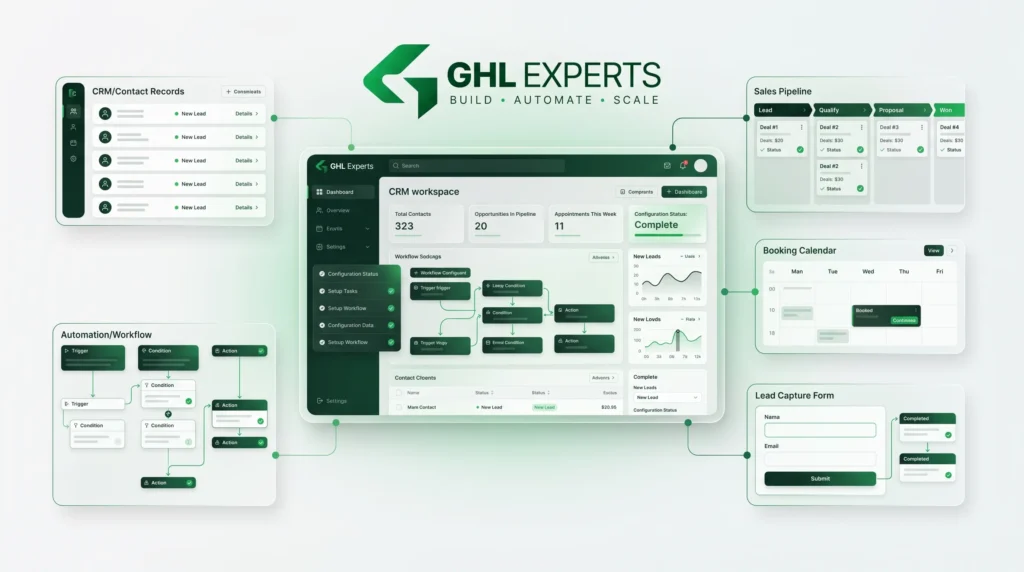
You've spent months building a reliable GoHighLevel Snapshot. It contains your agency's lead capture forms, automated follow-ups, booking calendars and sales pipelines. You've deployed it across multiple client accounts, and everything is running.
Then you improve the workflow in your master account.
The change works perfectly in testing, but now you need to apply it to 12 existing clients. Some have customized their automations. Others have contacts waiting inside active workflows. A few depend on different calendars and email templates.
How do you update your GoHighLevel Snapshot without damaging the systems your clients already use?
The answer is to treat Snapshot updates as controlled deployments rather than routine template changes.
This guide walks through the complete process: preparing your source account, refreshing the Snapshot, reviewing versions and dependencies, testing changes, pushing updates selectively and verifying every destination account.
You'll also learn how to avoid common problems involving overwritten workflows, missing assets and contacts affected by removed automation steps.
Can You Update GoHighLevel Snapshots Without Affecting Existing Client Accounts?
Yes, you can update GoHighLevel Snapshots and selectively push changes to existing client sub-accounts. However, that doesn't mean every update is risk-free.
HighLevel allows agencies to refresh Snapshot assets and distribute selected updates to eligible accounts. Existing contact records and conversations aren't transferred as part of a Snapshot, but replacing live workflows, templates or other configurations can affect how an account operates.
The safest approach is to review changes, test dependencies, protect client-specific customisations and deploy updates in controlled stages.
Understand the Difference Between Refresh, Load and Push Update
One of the most common Snapshot management mistakes is treating every Snapshot operation as though it does the same thing.
They don't.
Snapshot action
What it does
When to use it
Create Snapshot
Captures selected reusable assets from a source sub-account
Building a reusable client template
Refresh Snapshot
Updates the Snapshot with selected changes from its source account
Preparing a new Snapshot version
Load Snapshot
Imports selected assets into a destination sub-account
Initial deployment or adding assets to an existing account
Push Update
Sends selected refreshed assets to previously linked sub-accounts
Updating clients already using the Snapshot
Manage Linked Assets
Controls which assets remain included for future pushes
Excluding client-specific or unnecessary assets
Version History
Shows changes between Snapshot versions
Reviewing releases and investigating differences
The most important distinction is between Refresh and Push Update.
Changing a workflow in your master sub-account doesn't automatically change the existing Snapshot.
Refreshing that Snapshot captures the updated workflow, but it doesn't automatically distribute the change to client accounts.
To update eligible client sub-accounts, you must initiate the appropriate Push Update process.
That separation is useful. It gives your agency an opportunity to inspect what changed before those changes reach live clients.
What about loading a Snapshot into an existing account?
Loading is different from pushing.
If you want to add a Snapshot to an existing account, HighLevel provides an import process where you select assets and review potential conflicts.
When a conflicting asset already exists, the load process allows you to choose whether to Override the destination asset or Skip it.
An Override replaces the existing item and cannot simply be undone through the Snapshot load process.
For an account that already received your Snapshot and remains eligible for linked updates, use the appropriate Push Update process rather than repeatedly loading the entire template.
What Can Change When You Update a Snapshot?
GoHighLevel Snapshots primarily store reusable account configurations.
Depending on the selected assets and supported features, they can include workflows, forms, funnels, calendars, custom fields, custom values, pipelines and email templates.
They don't function as complete copies of everything inside a live CRM account.
For example, contacts, conversations, appointments and historical account activity aren't transferred as ordinary Snapshot data. Third-party integrations and credentials may also require separate configuration.
That distinction matters because protecting the contact database isn't the same as protecting the processes that act on those contacts.
Snapshot asset risk assessment
Asset
Potential impact of an update
Risk level
What to verify
Workflows
Changed triggers, actions or waiting steps
High
Live enrolments and execution paths
Funnels and websites
Changed pages, forms or conversion journeys
High
Published pages and live links
Calendars
Changed booking behaviour or configuration
High
Availability and appointment tests
Email templates
Changed messaging or template references
Medium–High
Content, branding and workflow mapping
Custom fields
Changed data references or dependencies
Medium–High
Field mapping and workflow conditions
Pipelines
Changed stages used by automations
Medium–High
Opportunity processes and related triggers
Custom values
Changed account-specific content if included and applied
Medium
Client details and variable references
Forms
Changed fields or submission behaviour
Medium
Lead capture and CRM mapping
These risk levels are practical editorial assessments, not official HighLevel classifications. The real risk depends on how each asset is used.
For instance, updating an inactive email template may be straightforward. Updating a workflow that is currently managing hundreds of customer appointments deserves considerably more attention.
The Biggest Risks of Updating Existing Client Accounts
1. Overwriting client-specific customisations
Suppose your agency deploys a standard lead follow-up workflow.
One client later changes the message wording, adds a qualification condition and adjusts the follow-up timing.
If the original Snapshot workflow is pushed over the modified version, those local changes may be affected or replaced.
This is why agencies should clearly distinguish between centrally managed assets and client-owned customisations.
A shared Snapshot works best when clients know which configurations are maintained by the agency and which are intended for local editing.
2. Interrupting active workflows
Workflows aren't simply files stored in a template.
They may have contacts actively progressing through timed sequences.
Changing or removing actions can affect those contacts.
This becomes particularly important when deleting a Wait step or restructuring a live automation.
A deployment that updates the workflow design may also alter the experience of contacts already inside it.
3. Missing dependencies
A workflow can reference several other HighLevel assets.
It might use a custom field to determine lead qualification, apply a tag and send an email using a stored template.
If the workflow transfers without its required supporting assets, the destination configuration may be incomplete.
HighLevel now provides automatic dependency detection for supported Workflows and Email Templates, but this does not cover every possible dependency across the platform.
4. Updating the wrong sub-account
Agencies with many similarly named locations are particularly vulnerable to selection mistakes.
Before pushing, identify each destination by its account details rather than relying on a familiar-looking name.
5. Partial or unsuccessful deployments
A Snapshot operation can complete some assets while others fail.
HighLevel provides refresh retry controls and Push Update History, but a general completion indicator should never replace asset-level verification.
6. Applying the same configuration to every client
Not every client account should receive every template improvement.
An appointment workflow designed for a dental practice may not suit a recruitment agency, even if both started from the same core Snapshot.
Standardisation saves time only when it doesn't remove necessary differences.
Before Updating: Your Snapshot Deployment Checklist
Before touching a live client account, establish exactly what you intend to change.
Use this checklist as your deployment preparation standard:
- Confirm the master source sub-account.
- Identify the Snapshot and its current version.
- Record which assets were changed.
- Identify supporting fields, templates, tags and pipelines.
- List the destination accounts that actually need the update.
- Check for local modifications in each destination.
- Review contacts waiting inside affected workflows.
- Confirm which automations are business-critical.
- Prepare a suitable test environment.
- Record the expected results for every changed asset.
- Establish a recovery plan for any high-risk configuration.
- Confirm permissions and client approvals where required.
- Schedule deployment to minimise operational disruption.
Remember: a GoHighLevel Snapshot is not a complete live-account backup.
It doesn't preserve the full state of your contacts, conversations or active business operations.
If a high-risk deployment needs recovery arrangements, document those independently rather than assuming another Snapshot will restore everything.
Step 1: Update the Master Source Sub-Account
Start by making your intended changes in the controlled source environment.
Imagine you're updating a reminder workflow for a home services business.
The original workflow sends an appointment reminder 24 hours before the booking.
You now want to add a second reminder closer to the appointment and improve the confirmation message.
Before refreshing the Snapshot, inspect the workflow's existing structure.
Ask yourself:
- Will an existing action be removed?
- Are any contacts currently waiting at that action?
- Does the new message use an additional email template?
- Does it reference a custom value that differs across clients?
- Is the reminder timing appropriate for every destination account?
A safer change might involve adding a new action while preserving the existing workflow structure where possible.
For significant changes, consider testing a separate workflow version rather than experimenting directly in production.
Document what changed and why.
A simple release description such as “Added a second appointment reminder and updated confirmation email” is far more useful than an undocumented refresh.
Step 2: Refresh the Existing GoHighLevel Snapshot
Once the source assets are ready, update the Snapshot itself.
HighLevel's documented process is:
Switch to Agency View.
Open Account Snapshots.
Locate the Snapshot you want to update.
Select its Refresh icon.
Review the available asset categories.
Select the new or modified assets you want included.
Click Refresh.
Review the refresh results before proceeding.
HighLevel displays progress while capturing selected assets from the source sub-account.
If an individual asset fails during refresh, other selected assets can continue processing.
The failed item is identified, and supported failures can be retried without restarting the entire operation.
Why selective refresh matters
Suppose you changed one workflow and one email template.
There is usually no reason to deliberately include unrelated funnels, calendars and pipelines in that release.
Keep your selected changes focused.
However, remember that supported automatic dependencies may add related assets to the Snapshot. Review those additions rather than assuming the final asset list contains only what you manually selected.
Don't continue to live deployment until the intended assets have been captured successfully.
Step 3: Review Snapshot Version History
After a successful refresh, HighLevel creates a new Snapshot version.
Version History lets you see what changed compared with the previous version.
To inspect it:
Go to Agency View → Account Snapshots → My Snapshots.
Select the Snapshot name.
Open Version History.
Choose the most recent version.
Review its detailed asset summary.
HighLevel identifies assets as:
Added: Assets included in the new version that weren't present before.
Removed: Assets no longer included compared with the previous version.
Synced: Assets present in both versions.
Version History may also identify assets automatically included as dependencies.
What should you look for?
If you expected to update one workflow but the new version includes several unrelated changes, investigate before pushing.
Likewise, if an important template unexpectedly appears as removed, determine whether it was deselected or changed in the source account.
Version History provides an audit trail.
It does not provide a built-in one-click restoration of an earlier Snapshot version.
That is why recording a version number is useful, but it shouldn't be confused with having a complete rollback plan.
Step 4: Check Asset Dependencies and Linked Assets
This is an important part of maintaining GoHighLevel Snapshots in 2026.
HighLevel's updated dependency handling identifies supporting assets for selected Workflows and Email Templates.
For example, a workflow may depend on:
- An email template.
- A custom field.
- A custom value.
- A tag.
- A pipeline or pipeline stage.
- A trigger link.
- A supported custom object.
When you create or refresh a Snapshot, HighLevel can automatically include available dependencies for the supported selected assets.
You can review automatically included assets through Version History.
What does Auto include dependent assets do?
During a supported Snapshot load, the asset-selection interface offers Auto include dependent assets.
When enabled, HighLevel selects the detected supporting assets alongside the main asset.
You can use View dependencies to inspect those relationships.
However, dependency selection and conflict checking are different operations.
Including the required email template doesn't establish that overriding the client's existing template is safe.
And the dependency controls shown during a load shouldn't automatically be assumed to work identically during every Push Update interface.
Check linked assets before pushing
HighLevel also allows agencies to manage the assets linked for future Snapshot pushes.
Go to:
Account Snapshots → My Snapshots → More Actions → Edit Snapshot
Review the enabled and disabled assets.
Unlink assets that should not be included in future pushes, and save the changes.
Unlinking an asset does not delete previously deployed copies from client accounts.
This is particularly helpful when a client has taken ownership of a customised workflow that should no longer receive central updates.
Automatic dependency detection has limits
The October 2026 HighLevel documentation identifies Workflows and Email Templates as the initial coverage for automatic dependency detection.
Other asset relationships still require manual review.
Unresolved dependencies may be skipped while Snapshot processing continues.
That means an apparently successful operation doesn't guarantee every referenced asset will function correctly.
Step 5: Test the Snapshot Update Before Pushing It Live
A test environment should resemble the type of client account receiving the update.
Simply opening the refreshed Snapshot isn't enough.
Load the relevant configuration into a suitable test sub-account, or use another controlled staging process appropriate to your setup.
Where loading introduces conflicts, review those explicitly.
What to test
Test
Expected result
Form submission
Contact details and relevant fields are captured
Workflow trigger
Correct event starts the expected automation
Email action
Correct template and client-specific details appear
SMS action
Message content and recipient settings are appropriate
Wait step
Delays and exit conditions behave as intended
Calendar booking
Appointment is created in the correct calendar
Pipeline update
Opportunity moves to the intended stage
Custom value
Correct destination-specific information appears
Funnel page
Published page and linked form function
Integration reference
Required destination connection is valid
Use controlled records rather than real customers wherever possible.
Avoid sending unwanted test emails or SMS messages to live contacts.
For updated workflows, inspect the execution path and make sure you understand what will happen to contacts already enrolled.
If the change is too complex to test safely, postpone the push until you have a suitable validation method.
Step 6: Push Selected Snapshot Updates to Existing Client Accounts
Once the updated Snapshot has passed testing, you can distribute the relevant changes.
The documented process is:
Return to Agency View → Account Snapshots.
Locate the refreshed Snapshot.
Select Push Update.
Review the eligible linked sub-accounts.
Select only the accounts intended to receive the release.
Choose the relevant assets.
Review the available selection and update controls.
Confirm the push.
Monitor the results.
HighLevel supports pushing updates to sub-accounts that previously received the Snapshot within your own agency.
This does not mean you can directly push changes into any external agency that imported your shared Snapshot.
External recipients generally need an updated sharing process and their own import or deployment action.
A safer deployment sequence
Rather than selecting every client immediately, deploy in stages.
Stage 1: Test account
Confirm that the Snapshot assets load and work correctly.
Stage 2: Pilot client
Choose one suitable existing account with known configuration and limited customisation.
Stage 3: Small client group
Deploy to a few additional compatible accounts.
Stage 4: Remaining accounts
Continue only when the previous deployments have passed verification.
A staged approach makes it easier to identify issues before they affect a larger number of clients.
Step 7: Prevent Conflicts and Unwanted Overwrites
Conflict management requires understanding what already exists in the destination.
When loading a Snapshot into an existing sub-account, HighLevel provides explicit Override and Skip choices.
Override replaces the existing asset with the Snapshot version.
Skip leaves the destination asset in place.
The correct choice depends on which version should be authoritative.
Example: Client-specific follow-up workflow
Your master Snapshot contains a standard lead follow-up workflow.
One client uses a customised version with additional qualification logic.
You now want to deploy an improved agency workflow.
Blindly replacing the client's workflow could remove the extra conditions.
A safer approach is to compare the versions and determine whether:
- The central update is genuinely needed.
- The client-specific functionality can be preserved.
- A separate new workflow would be more appropriate.
- The existing asset should remain excluded from future pushes.
The same principle applies to funnels, calendars and templates.
Don't assume that a client-specific change will automatically merge with your master Snapshot update.
When the relevant push process doesn't expose an equivalent conflict decision, protect the destination through careful asset selection, linked-asset management and pre-deployment review.
For agencies operating at scale, white-label GoHighLevel fulfilment can also provide a structured delivery process when maintaining separate client configurations becomes difficult to manage internally.
Step 8: Roll Out Updates Across Multiple Client Accounts
Consider a hypothetical UK marketing agency managing 12 GoHighLevel client accounts.
It has updated:
- One lead follow-up workflow.
- Two email templates.
- One custom qualification field.
The agency doesn't immediately push those changes to all 12 accounts.
First, it inspects the Snapshot Version History to confirm the intended assets were captured.
Next, it checks the workflow's dependencies and tests the updated configuration in a staging account.
The agency then reviews its client accounts.
Eight clients use the original workflow without modifications. Three use customised follow-up sequences. One has an unrelated booking process that requires additional review.
The agency selects one of the standard accounts for the first live deployment.
After verifying lead capture, workflow actions and email content, it deploys to the remaining compatible accounts in smaller groups.
The three customised accounts are reviewed individually, while the final account remains on hold until the booking configuration is understood.
This process requires more planning than clicking Push Update once.
But it avoids treating 12 different businesses as though their accounts were identical.
This is an illustrative scenario, not a GHL Experts client case study.
A simple Snapshot deployment decision tree
Use this framework before each deployment:
Is the client account linked to the Snapshot?
If yes, review whether it is eligible for Push Update.
If no, consider the appropriate selective Snapshot load process.
Does the client actually need the update?
If no, exclude the account.
If yes, continue.
Has the client modified any affected assets?
If yes, review those changes before applying the new version.
If no, continue.
Are active workflow enrolments affected?
If yes, inspect the execution state and prepare a specific transition plan.
Have the changed assets and dependencies been tested?
If no, stop and test.
If yes, proceed with a controlled deployment and verify the outcome.
This gives your team a repeatable basis for deciding whether to push, load selectively or defer an update.
Step 9: Verify Every Client Account After the Update
An update shouldn't be considered complete simply because HighLevel displays a success message.
You need to confirm that the correct assets reached the intended accounts and behave as expected.
Review Push Update History
Go to:
Account Snapshots → My Snapshots → More Actions → View History
HighLevel provides a history of Snapshot pushes, including successful, pending and failed sub-accounts.
You can inspect individual push records and expand asset-level details.
An important caution: HighLevel's documentation has noted that an asset group could appear completed even when not every individual asset loaded. Verify the actual assets rather than relying only on the overall status.
Post-deployment QA checklist
- Correct Snapshot release was deployed.
- Correct client sub-account was updated.
- Intended workflows are present.
- Workflow triggers and actions work.
- Existing live enrolments were reviewed.
- Email templates have correct content and mappings.
- Relevant forms capture contacts correctly.
- Appointment calendars work as expected.
- Custom fields and pipeline references are correct.
- Required account-specific integrations remain configured.
- No unexpected duplicate assets were introduced.
- Push history and test results are documented.
Complete these checks for each destination account, not just the first successful deployment.
What Happens to Contacts Waiting Inside Updated Workflows?
This is one of the most important risks to understand before changing a live Snapshot workflow.
A GoHighLevel workflow may contain Wait steps that hold contacts until a time delay, appointment condition or other event.
Suppose a contact is waiting in a reminder sequence.
Your Snapshot update removes the Wait step that the contact is currently using.
HighLevel documents a specific cleanup behaviour for workflows created from Snapshots: when a Snapshot refresh removes workflow steps, contacts waiting on the removed steps are automatically removed so they don't remain stuck.
The affected workflow may display a one-time notice.
Its Execution Logs can also show:
Removed by - Snapshot Refresh
This entry identifies the relevant cleanup event.
Why this matters
A contact removed from the affected workflow position may not receive the next planned message.
That could mean missing a reminder or an important follow-up.
This is why restructuring active workflows requires more care than changing an unused form.
Before deploying a workflow change:
Inspect the existing workflow steps.
Identify which steps are being removed or replaced.
Review live contacts waiting at those steps.
Determine what should happen to affected contacts.
Prepare an appropriate transition plan.
Validate the result after the update.
Don't routinely delete live workflows simply to force a new Snapshot version into place.
Deleting and recreating the workflow isn't an equivalent way to restore its existing execution state.
Where continuity is business-critical, consider maintaining the current workflow for existing enrolments while introducing a separately tested replacement for future contacts, if the platform configuration and business requirements support that approach.
Can You Roll Back a GoHighLevel Snapshot Update?
There is no built-in one-click Snapshot Version History restore that automatically returns a live sub-account to its previous complete state.
HighLevel's Version History allows you to compare Snapshot versions, but it is an inspection and audit feature rather than a complete restoration system.
That distinction is important.
If an update causes a problem, the recovery process depends on what changed.
For example, you may be able to reconstruct an earlier workflow configuration from a separately preserved copy or approved documentation.
You might need to restore specific templates, reconfigure references or rebuild an overwritten asset.
But recovering an earlier workflow design isn't necessarily the same as restoring contacts to the exact waiting state they occupied before the change.
Similarly, a Snapshot of an account doesn't provide a full backup of all its live contacts, conversations, appointments, credentials and operational history.
A practical recovery plan
Before a high-risk update, document:
- The original asset configuration.
- The intended new configuration.
- Which accounts will receive the update.
- How to stop further deployment if testing fails.
- How individual assets could be restored or reconstructed.
- Whether existing workflow enrolments need special handling.
- Who has authority to approve recovery actions.
Where available and appropriate, preserve separate copies of critical configurations and verify that your planned recovery method works.
If something fails after a push, stop the wider rollout first.
Investigate the exact affected assets before making further changes.
If your agency has inherited an undocumented configuration or cannot identify the original working version, a GoHighLevel technical support review may be more appropriate than attempting repeated untested fixes.
Troubleshooting Common GoHighLevel Snapshot Update Problems
Even a carefully planned deployment can encounter issues.
Use the table below to narrow down the cause.
Problem
Possible reason
Safe corrective action
Snapshot doesn't show new changes
Source edits were not refreshed
Refresh and inspect Version History
Push Update unavailable
Snapshot or account eligibility issue
Check refresh status, access and linked accounts
Client account isn't listed
Account may not be linked or eligible
Verify Snapshot relationship and agency membership
Asset missing from Snapshot
Asset wasn't selected or refresh failed
Review selection and retry failed items
Workflow didn't arrive
Asset excluded or load unsuccessful
Check asset-level history
Workflow exists but doesn't run
Missing dependency or destination configuration
Inspect triggers, references and execution logs
Email action has wrong content
Template mapping or client-specific differences
Verify Send Email action and template
Form appears twice
Duplicate import or overlapping asset
Review copies before removing anything
Calendar bookings fail
Destination calendar configuration differs
Test calendar settings and connections
Custom field isn't available
Dependency missing or mapping issue
Review asset selection and field references
Waiting contacts disappear
A workflow step may have been removed
Inspect Execution Logs and plan appropriate follow-up
External agency didn't receive changes
Internal Push Update doesn't update external imports
Refresh and follow the documented re-sharing process
Push appears completed but assets are missing
Partial deployment or asset-level failure
Inspect detailed Push Update History
Why does my updated workflow look correct but still fail?
Because the workflow design is only one part of the system.
A trigger may refer to a missing form. An email action may point to an incorrect template. A pipeline condition may use a stage that doesn't exist in the destination.
Inspect the full dependency chain rather than focusing only on the workflow's appearance.
Why didn't unlinking an asset remove it from clients?
Because unlinking controls future Snapshot pushes.
It doesn't delete copies already deployed into destination accounts.
If an obsolete client asset must be removed, treat that as a separate, reviewed change with appropriate precautions.
Snapshot Management Best Practices for Growing Agencies
A successful Snapshot strategy requires ongoing maintenance, not just good initial development.
Separate shared logic from client-specific configuration
Keep your reusable agency processes clearly identifiable.
Use descriptive naming conventions for centrally managed assets and a consistent approach to client-specific adjustments.
This reduces the chance of an agency-wide update unintentionally replacing a local workflow.
Maintain a release log
Every meaningful update should explain what changed, why it changed and which accounts received it.
A release record might look like this:
Field
Example
Snapshot
UK Home Services Master
Release reference
2026.11.04
Changes
Updated reminder workflow and two templates
Dependencies
Qualification custom field
Test result
Staging tests passed
Deployment
One pilot account, then approved client group
Known limitation
Bespoke reminder workflows excluded
Recovery
Preserved prior workflow configurations and manual recovery instructions
This is an example of an agency-maintained release note, not a claim that HighLevel automatically generates this exact document.
Standardise quality checks
Create a repeatable test checklist for workflows, forms, calendars, funnels and account-specific settings.
The checklist should be part of your delivery process, not something you remember only after a problem occurs.
Restrict unnecessary permissions
Not every team member needs to refresh Snapshots or push changes to client accounts.
Use the platform's available permission controls and establish internal approval procedures appropriate to the scale of your agency.
Build Snapshots for maintainability
Agencies using GoHighLevel SaaS Mode should consider how future Snapshot updates will affect repeated client provisioning and ongoing support.
A well-documented, consistently structured Snapshot is usually easier to maintain than a collection of heavily customised accounts with no shared release process.
When Should You Hire a GoHighLevel Snapshot Specialist?
If you manage only a few straightforward sub-accounts, a documented internal deployment process may be sufficient.
However, specialist support can become valuable when your Snapshots contain complex workflows, client-specific dependencies or undocumented customisations.
You may benefit from professional assistance if:
- You maintain multiple active client sub-accounts.
- Workflow updates repeatedly cause unexpected issues.
- You cannot identify which assets are linked or client-specific.
- Your agency has inherited poorly documented Snapshots.
- Several clients need different versions of a shared workflow.
- You're building a SaaS offer around repeatable account configurations.
- You need a more structured development, testing and deployment process.
GHL Experts UK provides custom GoHighLevel Snapshot development and maintenance for marketing agencies, including reusable configurations, documentation, testing and deployment support.
Rather than relying on a template that becomes difficult to change after launch, agencies can develop a clearer process for maintaining shared CRM infrastructure as their client base grows.
Final Thoughts: Update Your Snapshots Without Putting Client Operations at Risk
Updating GoHighLevel Snapshots isn't just about keeping templates current.
For an agency managing active clients, every meaningful change needs to account for existing workflows, dependencies, local customisations and the people relying on those systems.
A safer process follows a clear sequence:
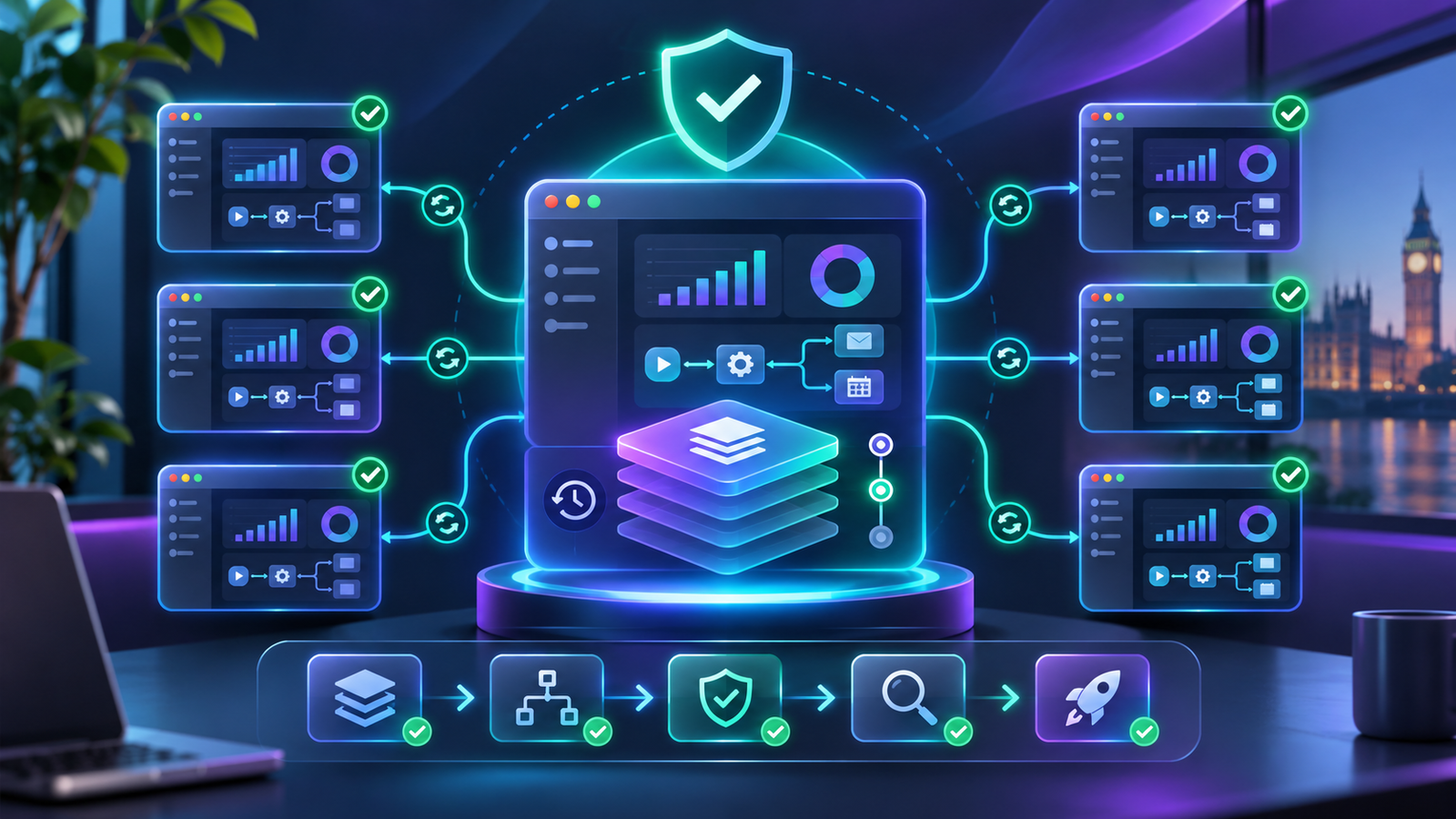
Prepare → Review → Refresh → Check Dependencies → Test → Select Accounts → Push → Verify.
This approach gives your team greater control over what changes, who receives the update and how problems are identified.
It also helps prevent a small template improvement from becoming an avoidable problem across multiple client accounts.
If your agency is managing complicated Snapshot updates, inherited configurations or multi-client deployments, professional assistance can help establish a more reliable maintenance process.
Need help updating or rebuilding your GoHighLevel Snapshots?
GHL Experts UK helps agencies develop, maintain and deploy reusable GoHighLevel configurations with clearer documentation and testing.
Explore GoHighLevel Snapshot Services and discuss the changes your agency needs to make.