
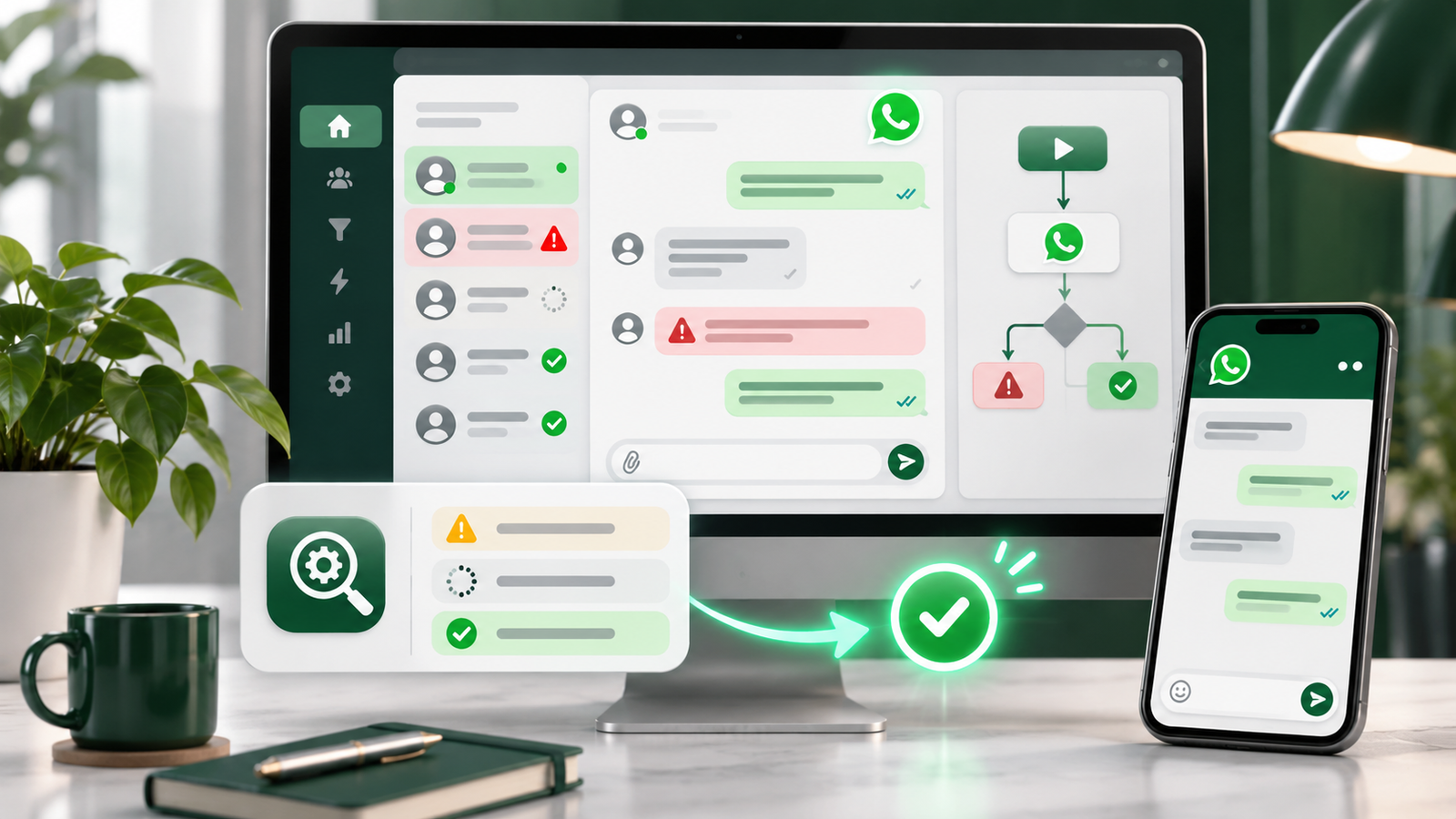
Your GoHighLevel WhatsApp integration appears connected, but customers are not receiving messages.
Perhaps your Manchester aesthetics clinic can send a WhatsApp reply manually, yet appointment reminders fail automatically. A message might show as Sent without reaching the customer. Another might fail because the customer last replied more than 24 hours ago.
These symptoms do not necessarily have the same cause.
If GoHighLevel WhatsApp messages are not sending, this guide explains how to identify the failure, understand Meta error codes, fix template and workflow problems, and test your messaging system without disrupting a working business number.
Why Is GoHighLevel WhatsApp Not Sending Messages?
GoHighLevel WhatsApp messages can fail because of an expired customer service window, unavailable Meta templates, incorrect template variables, invalid recipient numbers, missing permissions, WhatsApp Business Account restrictions or incorrectly configured workflows. Contact Do Not Disturb (DND) settings and Meta delivery restrictions can also prevent messages from reaching customers.
The correct solution depends on whether HighLevel skipped the action, Meta rejected the request, or an accepted message could not be delivered.
Start with the message status and actual error before changing your integration.
First, Identify Where Your WhatsApp Message Is Failing
Use this diagnostic table to narrow down the problem.
| What you see | Possible cause | What to check first |
|---|---|---|
| Message fails immediately | Connection or Meta permission issue | Settings → WhatsApp |
| Sent but not Delivered | Recipient or delivery restriction | Message status and error |
| Template missing | Template not available in HighLevel | WhatsApp Templates |
| Template rejected | Content, format or policy problem | Meta rejection reason |
| Message fails after 24 hours | Customer service window closed | Last inbound message |
| Workflow skips a contact | DND, eligibility or action conditions | Workflow execution details |
| Manual message works, automation fails | Workflow configuration or timing | WhatsApp workflow action |
| Error 131047 | Free-form reply outside the permitted window | Approved template |
| Error 131049 | Marketing delivery restriction | Message category and regional applicability |
| Error 132001 | Template name or language unavailable | Approved template details |
| Conversations missing from CRM | Coexistence, partner or routing configuration | Meta Conversation Routing |
| Business number restricted | Meta account enforcement | WABA account status |
Before making changes, record the affected contact, sending number, message time, message type, workflow name and any available error code.
One successful test does not prove that all message types and automated journeys are working.
WhatsApp Message Statuses Explained
HighLevel reports several message states. Understanding them helps identify which system needs attention.
| Status | What it means |
|---|---|
| Pending | The message is queued or awaiting processing. |
| Sent | The message has been sent towards WhatsApp but delivery is not yet confirmed. |
| Delivered | WhatsApp has reported delivery to the recipient. |
| Read | The recipient has read the message, where read receipts are available. |
| Failed or Error | Sending or delivery did not complete successfully. |
| Skipped | HighLevel did not attempt the message because applicable sending conditions were not met. |
| A Sent message is not proof that the customer received it. | A Failed message may involve Meta or the recipient. A Skipped action usually requires examining HighLevel's execution or contact eligibility information first. |
Read receipts may also be unavailable because of privacy settings. A Delivered message can therefore have been read without appearing as Read.
Step 1: Check Your WhatsApp Business Connection
Open the affected GoHighLevel sub-account and navigate to:
Settings → WhatsApp
Check that:
The intended business phone number is connected.
The correct Meta Business Portfolio is associated with the integration.
The correct WhatsApp Business Account (WABA) is selected.
The phone number has completed the necessary onboarding.
The account and display name are eligible for messaging.
The required integration permissions are present.
HighLevel supports several onboarding methods, including connecting a compatible existing WhatsApp Business App through Coexistence, connecting a new business number and migrating from another Business Solution Provider.
The correct troubleshooting method depends on the onboarding route originally used.
Do not disconnect, delete or migrate an active business number simply because one message failed. Such changes can affect business communications, account access and configuration.
If every contact and message type suddenly fails, a connection or account-wide issue becomes more likely. If only one template or recipient fails, investigate that narrower problem first.
Step 2: Check Meta Permissions and Account Restrictions
A connected WhatsApp number does not guarantee that every integration permission remains valid.
Review the relevant Meta Business Portfolio, WABA and authorised integration.
For technical integrations, relevant permission scopes can include:
- whatsapp_business_management
- whatsapp_business_messaging
An expired authorisation, removed business permission, incorrect WABA ownership or restricted account can interrupt messaging.
Look for changes involving the business administrator, connected partner, authorised application or phone number.
If the problem follows a permission change, investigate that event before recreating templates or workflows.
For a policy-related restriction, review the notice inside Meta's business tools and use the available review or appeal process.
Some restrictions require Meta's intervention. HighLevel administrators cannot override Meta's enforcement by changing CRM settings.
Never send access tokens, passwords or private credentials to a troubleshooting provider.
Step 3: Understand the WhatsApp 24-Hour Rule
The WhatsApp customer service window is one of the most common reasons that otherwise valid messages stop sending.
A customer opening a conversation starts a 24-hour period during which the business can send eligible free-form replies.
Each new inbound customer message resets the window.
Once the window closes, the business must use an appropriate approved WhatsApp template to initiate another message.
A simple example
| Time | What happens |
|---|---|
| Monday, 10:00 am | Customer sends the business a WhatsApp enquiry. |
| Monday, 3:00 pm | The business can send an eligible free-form response. |
| Tuesday, 9:30 am | The window remains open if no later customer message has changed the timing. |
| Tuesday, 10:30 am | The window has expired if the customer has not replied again. |
| Tuesday, 10:35 am | A new business-initiated message requires an appropriate approved template. |
| This rule applies to automated messages as well as manual conversations. | Imagine an appointment enquiry arriving on Monday morning. Your workflow waits two days before sending a reminder. |
If the customer has not replied during that period, a free-form WhatsApp action will not be eligible. The workflow needs a valid approved template at the point of sending.
What reopens the window?
A new inbound customer message opens another 24-hour customer service window.
Sending another business message, editing the contact or retrying an unsuccessful message does not independently reopen it.
An approved template also does not give the business unrestricted permission to send free-form messages indefinitely.
The messaging window is a Meta platform rule, not an optional HighLevel setting.
For technical guidance, see HighLevel's explanation of the 24-hour customer service window.
Step 4: Fix GoHighLevel WhatsApp Error 131047
Error 131047 indicates an attempted re-engagement message outside the permitted customer service window.
For example, a sales representative tries to send:
"Hi Sarah, just checking whether you still want to book."
The last inbound customer message was three days earlier. The normal WhatsApp reply fails because the 24-hour window has closed.
How to fix it
First, open the relevant contact conversation and establish the time of the last inbound WhatsApp message.
Next, confirm whether the failed action used free-form text or an approved template.
If the window has expired, select an appropriate active template that accurately reflects the message's purpose and your permission to contact the customer.
For example, a genuine appointment notification might use an approved Utility template. Promotional content must not be disguised as a transactional notification.
Send a controlled test to an authorised recipient and inspect the actual delivery status.
Before: A delayed workflow attempts a free-form reply after two days.
After: The workflow uses an appropriate approved template outside the window and reserves free-form responses for eligible customer conversations.
Do not repeatedly retry the same ineligible message.
Step 5: Check WhatsApp Template Approval Status
Go to:
Settings → WhatsApp → Templates
Find the affected template and inspect its current status.
| Template status | What it means |
|---|---|
| In Review | Meta has not completed its review. |
| Rejected | The template has not been approved. |
| Active - Quality Pending | Approved and available, with limited quality feedback so far. |
| Active - High Quality | Available with strong quality signals. |
| Active - Medium Quality | Available but should be monitored. |
| Active - Low Quality | Available but at greater risk of being paused. |
| Paused | Temporarily unavailable for sending. |
| Disabled | Unavailable for sending. |
| Appeal Requested | A review request is awaiting a decision. |
| These statuses reflect HighLevel's November 2026 template guidance. | A template can be approved initially and later become paused or disabled because of quality-related restrictions. |
| Therefore, previous approval does not guarantee that a template remains available today. | If a template is rejected, read the specific reason before editing or submitting another version. |
If it is paused or disabled, investigate the quality or policy issue rather than creating repeated near-identical submissions.
Step 6: Fix Rejected or Missing Meta Templates
Template problems often involve one of two different situations.
The template exists in Meta but is missing in GoHighLevel
HighLevel imports existing Meta WhatsApp templates during initial onboarding.
However, its current documentation does not describe continuous automatic synchronisation for templates created directly in Meta afterwards.
This means a template created in Meta Business Manager after the initial connection may not appear inside the CRM.
The supported approach is to create and manage new templates in:
Settings → WhatsApp → Templates
Before rebuilding anything, confirm the template's name, language, category, availability and approval status.
Meta rejected the template
Common rejection reasons include:
- Invalid placeholder formatting
- Missing sample variable values
- Unsupported content
- Incorrect message categorisation
- Excessive or poorly placed variables
- Duplicate or substantially similar submissions
- Content inconsistent with WhatsApp policies
HighLevel's template builder now catches certain formatting mistakes before submission. However, successful builder validation does not guarantee Meta approval.
For example, a template might pass formatting checks but still be rejected because its marketing content was submitted under the wrong category.
Correct the actual problem, then follow the available resubmission or appeal process.
Step 7: Fix WhatsApp Template Variable Errors
Template variables insert contact-specific information into approved WhatsApp messages.
A typical appointment reminder might look like this:
Template body:
"Hello {{1}}, this is a reminder that your consultation is booked for {{2}} at {{3}}. Reply if you need to change your appointment."
Example values:
| Variable | Sample value |
|---|---|
| {{1}} | Sarah |
| {{2}} | 18 November |
| {{3}} | 2:30 pm |
The example assumes the business has a real appointment to communicate and the message meets the applicable Utility template requirements.
Common variable failures
A message may fail because a contact name is empty, the template expects three parameters but receives two, or the values do not match the approved parameter types.
Template creation can also fail because a placeholder is malformed.
For example, {{1 or {{1}}} is not valid numbered placeholder syntax.
HighLevel also checks supported placement errors, including variable-only beginnings or endings in the message body. Other problems may still be identified during Meta review.
How to investigate
Open the affected template, compare its approved structure with the values being passed from HighLevel and inspect the selected contact's data.
Check that the right language is selected and that all required variables have valid values.
Test using a contact containing complete, realistic information.
Do not fill missing customer data with fabricated values just to make a message send.
Step 8: Fix Error 132001 and Related Template Errors
Meta uses specific error codes for several template-related problems.
| Error | Meaning | Likely cause | Recommended action |
|---|---|---|---|
| 132000 | Parameter count mismatch | Wrong number of supplied variables | Match the approved template's parameter count |
| 132001 | Template does not exist in the specified language | Missing name, language or available template | Verify template name, language and approval |
| 132007 | Template content policy violation | Non-compliant template content | Review Meta's rejection or policy information |
| 132012 | Parameter format mismatch | Incorrect parameter type or format | Correct the supplied values or component structure |
| 135000 | Generic user or template error | Request problem or Meta-side restriction | Inspect parameters, status and the returned error details |
Why error 132001 happens
Suppose the approved template exists in one language, but the workflow references a different language version.
The send can fail even when the template name appears correct.
Likewise, a template that exists only in Meta but was never made available to HighLevel can be missing from the CRM's template selector.
Compare the exact approved name and language with the selected template. Do not assume that different language variants are interchangeable.
For persistent generic errors, collect the available Meta error details and request technical assistance.
Avoid deleting working templates or re-registering the business number as an initial fix.
Step 9: Fix WhatsApp Messages Showing Sent but Not Delivered
A message marked Sent has not necessarily reached the intended recipient.
Possible explanations include:
- The recipient number is invalid or not registered on WhatsApp.
- The recipient is temporarily offline.
- The recipient's WhatsApp application or device cannot receive the message.
- The business has been blocked by the recipient.
- A geographic or Meta delivery restriction applies.
- The message encounters a provider or platform issue.
An undelivered message is not proof that the recipient blocked your business.
Meta does not always reveal the precise underlying cause.
Practical investigation
Check the stored phone number, including its international country code.
Confirm whether the failure affects one contact, several contacts or every recipient.
Look for a delivery error rather than relying only on the Sent status.
Test with a separate, authorised recipient whose number is known to work on WhatsApp.
If the problem appears widespread, check the Meta platform status and your WABA's account condition.
Do not send repeated promotional messages to test a suspected recipient block.
Step 10: Troubleshoot Errors 131026 and 131049
These errors can look similar to a business owner, but they require different investigations.
Error 131026: Message Undeliverable
This is a broad delivery failure.
Possible causes include an unregistered WhatsApp number, recipient availability, recipient blocking, unsupported message conditions or relevant delivery restrictions.
Because multiple causes can produce the same error, one occurrence does not establish a definitive explanation.
Check the number, message type, affected recipients and any additional error details.
Error 131049: Marketing Delivery Restriction
This code is associated with Meta's measures for maintaining healthy engagement, particularly per-user marketing template restrictions.
In markets where those restrictions apply, Meta can limit marketing messages according to recipient engagement and messaging patterns.
Important for UK businesses: HighLevel's July 2026 guidance states that these particular per-user marketing template limits are not currently active for messages sent from a business phone number in the United Kingdom, European Economic Area, Japan or South Korea, or to users in those regions.
Therefore, a UK-to-UK conversation should not automatically be diagnosed as hitting that particular cap.
Other messaging restrictions, policy enforcement and quality problems can still apply. If error 131049 appears unexpectedly, inspect the actual sending and recipient regions and escalate the specific error when necessary.
The separate restriction on marketing templates sent to United States phone numbers may also matter to UK companies contacting international customers.
Do not repeatedly retry a blocked marketing message. Investigate eligibility and the applicable restriction first. A transactional Utility template must not be used as a workaround for prohibited marketing.
Step 11: Fix WhatsApp Workflow Messages Not Sending
A WhatsApp message that works manually can fail through an automated HighLevel workflow.
This is possible because the workflow may use a different template, sending number, contact record, delay or execution condition.
Go to:
Automation → Workflows → Select the affected workflow
Check the following:
Is the workflow published and active?
Did the intended contact enter the workflow?
Did the contact reach the WhatsApp action?
Is the correct connected sending number selected?
Does the action use free-form text or an approved template?
Will the customer service window still be open when the action executes?
Are the required template variables populated?
Is the contact eligible to receive the message?
Is WhatsApp DND or an opt-out preventing sending?
Does the execution history show a failed or skipped action?
Review the WhatsApp action's available message statistics alongside the workflow's execution details.
Manual message versus workflow message
| Manual conversation | Automated workflow |
|---|---|
| Staff sends during an open window | Workflow sends after a long delay |
| Staff selects an active template | Workflow references an outdated template |
| Correct number is used manually | Workflow selects another sending number |
| Staff uses a complete contact record | Automation receives missing fields |
| Message is successfully delivered | Action is skipped or fails before delivery |
| A workflow that did not enrol the contact has a different problem from one that enrolled the contact but failed at WhatsApp delivery. | For wider automation configuration problems, GHL Experts UK provides GoHighLevel workflow automation services. |
If the workflow works until the WhatsApp action, investigate the messaging-specific evidence rather than rebuilding the complete automation.
Step 12: Check Customer Opt-In and DND Settings
WhatsApp delivery is not only a technical issue. Customer communication preferences also matter.
A contact may have opted out, be marked Do Not Disturb for WhatsApp or lack the necessary permission for the intended communication.
Removing DND without establishing a legitimate reason and appropriate permission is not an acceptable solution.
WhatsApp marketing and UK compliance
Under UK PECR, electronic direct marketing rules can cover WhatsApp and similar messaging services.
For marketing to individual subscribers, consent is generally required unless an applicable exception, such as the products and services soft opt-in, is fully satisfied.
That exception has specific conditions, including obtaining contact details during a sale or negotiation, marketing similar products or services, and offering an appropriate opportunity to opt out when details were collected and in subsequent messages.
The UK GDPR also requires appropriate handling of personal information.
An operational appointment notification should be assessed separately from promotional marketing. A transactional label does not automatically make promotional content lawful.
For example, a clinic that receives an enquiry about one treatment should not assume that it can add the enquirer to ongoing promotional WhatsApp campaigns without the necessary permission.
Meta template approval is not proof of UK marketing consent. Being inside the 24-hour customer service window does not remove applicable marketing-law requirements either.
Review the ICO's guidance on electronic direct marketing when defining your consent and opt-out processes.
Step 13: Troubleshoot WhatsApp Business App Coexistence and Conversation Routing
HighLevel supports eligible businesses using an existing WhatsApp Business App alongside the WhatsApp Business Platform through Coexistence.
This can allow businesses to continue using their existing mobile app while accessing CRM messaging.
However, eligibility, onboarding and supported synchronisation behaviour depend on the relevant setup.
If incoming conversations are missing
First, check whether the number was connected through Coexistence and whether the initial contact and chat-history synchronisation was completed successfully.
Then inspect any other connected partners, applications or AI agents.
New November 2026 consideration: Conversation Routing
Meta's Conversation Routing functionality allows businesses to control which integration receives certain message types and which integration can respond.
HighLevel documented this functionality on 11 November 2026, following Meta's announcement earlier that month.
For eligible configurations, inspect Conversation Routing in Meta Business Suite.
Check whether the CRM is designated as the primary responder for the relevant conversation type, or whether another application has been assigned that responsibility.
An integration placed in a standby role may be able to observe conversations without being allowed to respond.
This distinction matters when messages are received elsewhere but do not appear in HighLevel as expected.
Do not assume a missing conversation means the WhatsApp number must be migrated.
Step 14: Check Meta Messaging Limits and Account Quality
WhatsApp Business Accounts are subject to limits and quality controls.
HighLevel's September 2026 guidance describes business-initiated messaging capacity at the business portfolio level, shared across connected numbers in that portfolio.
Its documented initial limit is 250 unique recipients in a rolling 24-hour period for applicable business-initiated messaging, with scaling paths available when the relevant requirements are met.
This is different from Meta's per-user marketing template restrictions.
Businesses managing several phone numbers should check whether their shared portfolio capacity is affecting sends.
Monitor:
- WABA restrictions and messaging capacity
- Business phone number quality
- Active template quality and availability
- Failed or undelivered campaign messages
- Opt-outs and negative customer feedback
- Bulk-action errors and skipped contacts
A business sending excessive unwanted messages may experience weaker engagement and greater policy or quality problems.
Do not attempt to increase delivery by rotating business numbers, disguising promotional content or disregarding customer preferences.
Step 15: Understand WhatsApp Pricing Changes in October 2026
WhatsApp's billing rules have changed, so earlier explanations about free service replies may now be inaccurate.
According to HighLevel's billing guidance updated on 4 November 2026, the following changes took effect on 1 October 2026.
| Message category | Current charging approach |
|---|---|
| Marketing templates | Charged per applicable delivered message |
| Utility templates | Charged per message, including inside an open customer service window |
| Authentication templates | Charged per applicable delivered message |
| Service messages | First 1,000 per business phone number per calendar month are free; additional service messages are charged |
| Qualifying Free Entry Point messages | Special free-entry-point pricing treatment may apply |
| The service-message allowance resets monthly and is tracked by business phone number. | Charges vary according to message category, destination market and applicable pricing arrangements. Agencies using rebilling should also review their client pricing and usage settings. |
| Qualifying Click to WhatsApp entry points can have a separate 72-hour free-entry-point pricing window. | Do not confuse a billing exception with unrestricted messaging permission. The customer service window and relevant messaging policies still need to be considered. |
| When investigating costs, also check for duplicate workflow actions or unnecessary repeat sends. | Billing problems should only be treated as a sending root cause where the account's actual error or product documentation supports that conclusion. |
Complete GoHighLevel WhatsApp Error Code Table
Use this table as a quick reference when diagnosing failed WhatsApp messaging.
| Error code | What it means | First check | Recommended action |
|---|---|---|---|
| 131000 | Generic processing failure | Meta status and returned error details | Check for outage, configuration or authorisation problems |
| 131005 | Access denied | Meta permissions | Review affected authorisation and access |
| 131026 | Message undeliverable | Recipient and delivery conditions | Check contact details and relevant restrictions |
| 131031 | Account locked or restricted | WABA status | Follow Meta's account review process |
| 131047 | Re-engagement outside 24 hours | Last customer message | Use an appropriate approved template |
| 131049 | Marketing delivery restriction | Recipient region and marketing eligibility | Identify applicable restrictions and avoid repeated retries |
| 132000 | Template parameter count mismatch | Variable count | Match the approved template |
| 132001 | Template missing or unavailable in the selected language | Template name and language | Select the correct approved template |
| 132007 | Template content policy violation | Policy or rejection details | Correct the content or follow the review process |
| 132012 | Template parameter format mismatch | Variable format | Correct supplied values and component types |
| 135000 | Generic user or template error | Request details and Meta response | Diagnose the specific request; escalate persistent errors |
Error descriptions should be considered alongside the full available response. Generic codes do not always identify a single guaranteed cause.
For serious or recurring failures, preserve the affected template, timestamps, WABA details and available error reference before contacting support. Do not share private credentials.
How to Test WhatsApp Messaging After Fixing It
Testing should prove that messages are working for the intended business process, not merely that the CRM connection appears active.
Use a small number of authorised test contacts who have agreed to receive the messages.
Controlled testing checklist
- Confirm the correct HighLevel sub-account.
- Confirm the connected WhatsApp business number.
- Check the relevant Meta account and permissions.
- Select an approved, active template.
- Validate the recipient's phone number.
- Confirm whether the customer service window is open.
- Check every required variable.
- Send an eligible manual test message.
- Trigger the real WhatsApp workflow using test data.
- Inspect the message's delivery status and execution result.
- Verify incoming customer replies reach the intended CRM conversation.
- Confirm the expected human handover process.
- Check whether opt-out and DND behaviour is respected.
- Review message usage and unexpected billing.
For important appointment or enquiry workflows, test more than one scenario.
Include an open customer service window, a closed window requiring a template, and a contact who should not receive a marketing message.
A workflow should handle unsuccessful delivery safely rather than silently assuming every send succeeded.
Realistic Example: A UK Clinic With Three Different WhatsApp Problems
Hypothetical example for illustration, not a documented GHL Experts UK client case.
A Birmingham aesthetics clinic uses HighLevel to communicate with customers about consultations.
The clinic notices three problems.
Problem one: Appointment reminders fail when customers have not replied for several days.
The administrator discovers that a workflow uses ordinary free-form messages after the 24-hour customer service window has closed.
The appropriate action is to use an approved notification template that accurately represents the appointment reminder.
Problem two: Another reminder fails because the contact's appointment time is missing from the workflow's template variables.
The administrator corrects the data mapping and tests it using a valid appointment record.
Problem three: Staff can view WhatsApp messages in the mobile app, but some conversations are missing from the CRM.
The team reviews its Coexistence setup and, where available, Meta Conversation Routing to identify which integration receives those message types.
The clinic investigates three distinct causes rather than disconnecting and reconnecting its business number.
That approach protects the existing configuration while making each correction easier to verify.
Common WhatsApp Problems and Fixes
| Problem | Where to inspect | Best next action |
|---|---|---|
| All outgoing messages fail | Connection, permissions and WABA | Identify the account-wide error |
| Only one template fails | Template status and parameters | Correct the affected template |
| Delayed follow-up fails | Customer service window | Use an eligible approved template |
| Manual sends work, automation fails | Workflow action and execution | Correct workflow-specific configuration |
| Recipients do not receive messages | Delivery error and recipient details | Investigate delivery conditions |
| Incoming chats are missing | Coexistence and Conversation Routing | Verify message routing responsibilities |
| Campaign skips contacts | Bulk action reporting and DND | Review contact eligibility |
| Marketing messages are restricted | Meta quality and regional rules | Diagnose the applicable restriction |
The purpose of this table is to identify the next useful investigation, not to prescribe the same fix for every failure.
How to Prevent WhatsApp Delivery Failures
A reliable WhatsApp integration requires more than a successful initial setup.
Keep a record of which Meta Business Portfolio owns the WABA and which authorised applications are connected.
Create and manage templates using the supported HighLevel process. Monitor approval status, quality changes and the specific language variants used by workflows.
Review delayed workflow actions to ensure they use appropriate templates when the customer service window may have closed.
Keep contact phone numbers and required template data accurate. Respect messaging permissions and opt-outs, and use structured error handling to alert staff when important customer communications fail.
After major changes to Meta access, WhatsApp onboarding, workflow logic or conversation routing, repeat controlled tests.
It is also sensible to periodically review WhatsApp usage and billing, particularly where an agency operates multiple client sub-accounts.
When Should You Hire a GoHighLevel WhatsApp Specialist?
Some problems can be resolved by correcting a template or contact record.
Others involve multiple connected systems, account ownership, custom APIs, undocumented workflows or Meta restrictions.
Professional troubleshooting can be useful when:
- WhatsApp messaging suddenly stops across the business.
- Multiple Meta templates fail or disappear.
- Customer appointment reminders are consistently missed.
- Delayed workflows fail outside the 24-hour window.
- Different integrations appear to compete for incoming conversations.
- Permissions or WABA ownership are unclear.
- An agency manages several affected HighLevel sub-accounts.
- Existing custom integrations require investigation or repair.
GHL Experts UK provides GoHighLevel WhatsApp integration troubleshooting covering connected systems, workflow integrations, error handling and testing.
Its published integration repair pricing starts from £395 excluding VAT, although the actual scope and cost depend on the diagnosed problem. This is not a guarantee that every Meta or WhatsApp issue qualifies for a fixed-price repair.
For wider existing-account problems, GoHighLevel technical support may also be appropriate.
A specialist should identify the root cause, explain what can be changed safely and document the result. Meta-side restrictions and policy decisions cannot be guaranteed to resolve through a CRM repair.
GoHighLevel WhatsApp Go-Live Checklist
Before relying on WhatsApp for customer communications, confirm the essentials:
- WABA ownership and administrator access are documented.
- The intended business phone number is connected and eligible.
- Required Meta permissions and integrations are confirmed.
- Templates are approved and available in HighLevel.
- Required contact permission and opt-out processes are in place.
- Workflows use the correct number and message type.
- Closed-window situations are handled with approved templates.
- Template variables have been tested with valid records.
- DND and suppressed-contact behaviour has been verified.
- Incoming conversations reach the intended responder.
- Delivery and workflow error reporting is monitored.
- Billing and agency rebilling arrangements are understood.
- Staff have a clear escalation process for failed messages.
A successful launch is not simply a message appearing as Sent. It is a verified customer journey with appropriate monitoring and safe failure handling.
Conclusion: Fix the Cause Before Reconnecting WhatsApp
When GoHighLevel WhatsApp messages are not sending, follow a consistent troubleshooting sequence:
Identify the message status → Check the connection → Review the 24-hour rule → Verify templates and variables → Inspect Meta errors → Test workflows → Confirm delivery.
A failed WhatsApp message does not automatically mean the integration is broken.
The problem may involve an expired service window, missing template, incorrect workflow configuration, recipient delivery issue or restriction controlled by Meta.
Repeatedly resending messages or disconnecting business numbers without evidence can create additional problems.
If WhatsApp errors are affecting customer enquiries, appointments or automated follow-ups, contact GHL Experts UK for professional integration diagnosis and repair.
The aim is to identify what failed, correct what can safely be fixed and establish a reliable, testable messaging process for your business.